Time & attendance
Attendance guide
How raw clock-ins become a timesheet, a monthly summary and — where you switch them on — overtime and late fines on the payslip. Punches arrive from the attendance machines or a spreadsheet upload, a rollup turns them into one row per person per day, and the same maths the payslip uses is shown back to you first so nothing is a surprise at month end.
This is the guide HumanR users read inside the product, published as-is. It is written for someone with the screen in front of them, so it describes buttons you cannot click from here — which is rather the point: you can check how the product behaves before you commit to it.
Where attendance comes from
Two words carry the whole module. A punch is one clock event — a person, a timestamp, and whether it was an in or an out. A rollup collapses all of a day's punches into a single attendance day per person: their status, first-in, last-out and punch count. Every screen here reads from those two things.
Punches get in two ways: automatically from ZKTeco machines (covered by the separate attendance devices guide), or by uploading a spreadsheet of them — the same punches a device would push, typed or exported by hand. This guide is about everything after the punch arrives.
Set up first
Attendance is only as good as two pieces of setup:
1. PIN mapping. A machine identifies a person by a numeric PIN (its device user id). Each employee carries a Device PIN that must match. Until it does, that person's punches pile up as unmapped and never roll up. Set the PIN on the employee, or link it from the Unmapped PINs page.
2. Hours, overtime & late-fine rules. These live on the work site as defaults, on Payroll › Overtime & fines, and can be overridden per employee on their salary package:
| Setting | Controls |
|---|---|
| Standard hours / day, break hours | The working day. Worked hours = time on site minus the break; anything over standard is overtime. |
| OT eligible, OT rate | Whether overtime is paid at all, and the multiplier (typically 1.5×). |
| Friday pay, Friday allowance | How a Friday worked is paid, set per site: a flat amount per Friday (the default), or every hour worked that day at the hourly rate × the site's holiday/weekend rate — optionally public holidays too. Hourly-paid days are not paid again as overtime, and need neither OT eligibility nor room under the OT ceilings. |
| Late fine (W9) | The on-time cutoff, minutes of grace, the multiplier, which salary the fine is drawn from, and how minutes are rounded. |
W9 is the late-fine configuration — the name carried over from the old "late fine" tracker sheet. A fine is charged when the first punch is later than the cutoff plus grace — on a working day only. A Friday, a rostered rest day or a public holiday is never late-fined.
Upload attendance
No machine, or a gap to backfill? Upload attendance (from the Devices & rollup page, with the manage permission) walks a spreadsheet of punches in through four steps. Nothing is written until the last one.
- Choose file — an
.xlsxof raw punches (up to 20 MB). - Map columns — the wizard guesses from the headers and shows a preview; you confirm which columns are the staff no or PIN, the date and time (or a single combined date-time column), and the in/out state. You need at least an identifier and a date. You can switch sheet or header row and re-scan.
- Review — a dry run parses every row and reports what will happen: how many punches insert, how many are duplicates it will skip, how many rows match no employee, and how many have an unreadable date. It shows samples so you can fix the sheet before committing.
- Commit — the punches are inserted (tagged as manual, with the file name as the reason) and a rollup runs automatically over the dates covered.
Unmapped PINs
Attendance › Unmapped PINs lists every PIN that has been punching with no employee behind it, busiest first. Enter a staff number and link it, and all of that PIN's punches — past and future — are claimed and will roll up. An unmapped PIN is the usual reason someone is "missing" from the register, so clear this list first when a person's days look empty.
Rollup
The rollup is what turns punches into the day rows every screen reads. It runs automatically every 15 minutes over the last few days, so recent attendance stays fresh on its own. For anything older — a late upload, a corrected punch — use the Recompute form on Attendance › Devices & rollup to re-run a date range by hand.
That page is the control room: tiles for punches today, unmapped today, unmapped all-time (red when any exist) and how current the rollup is (amber when it is behind), plus the device list with a stale-device warning. It also has the manual punch form for the odd missed scan. Each day's status is set here too — Present if there is a punch, On leave if a leave record covers it, Holiday on Fridays and public holidays, otherwise Absent (or Not joined before the hire date). A day with a punch is always Present, even if leave overlaps it.
Daily register
Attendance › Daily register is one date, one row per person: status, first-in, last-out, hours on site and punch count. Status tiles filter it, and you can page back and forth by date.
Timesheet
Attendance › Timesheet is one person across a whole salary period — the 25th of the previous month to the 24th of this one, the same window payroll runs on. Every day in the period gets a row, blanks included, so a gap is visible rather than silently dropped. A manual badge marks days whose punches were entered by hand, and a warning appears if a past day has not been rolled up yet.
Beside the hours it shows what each day will be paid or charged: OT hours, the Friday hours where the site pays Fridays by the hour, and the day's late minutes where fines are on — each column adds up to the matching payslip line. The fine amount shows only to people who can see pay.
Monthly summary
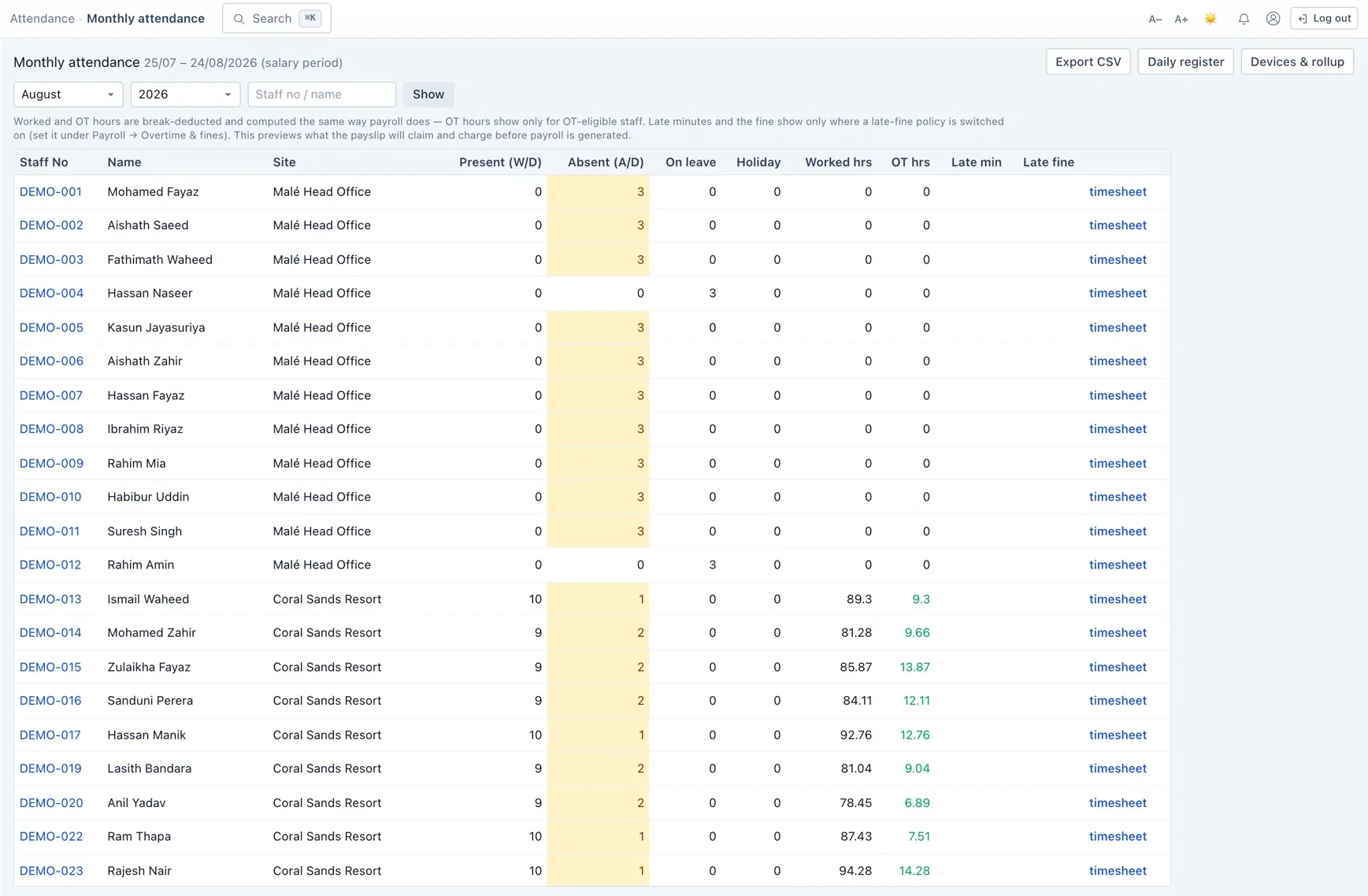
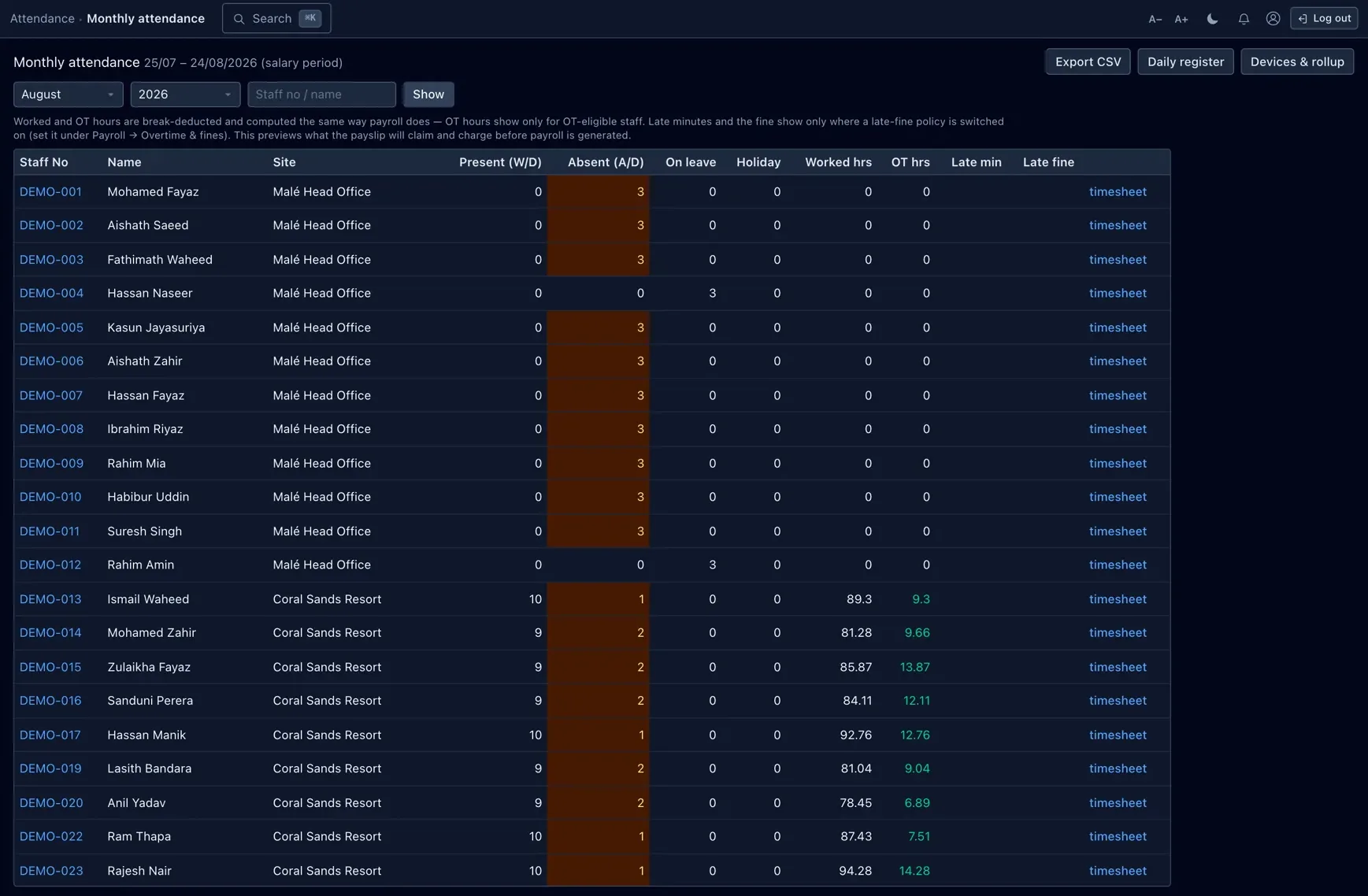
Attendance › Monthly summary is everyone across the salary period on one line each: days present, absent, on leave and holiday, then worked hours, OT hours, the Friday hours on sites that pay them by the hour, late minutes and — for people who can see pay — the late fine in the person's currency.
Punch log
Attendance › Punch log is the raw feed — every punch with its time, PIN, person, device and the raw in/out and verification codes the machine sent. Filter by date or device, or flip on unmapped only to see the punches with no employee behind them (highlighted in red). Manually entered punches carry a badge and their reason.
How overtime & fines reach payroll
Attendance and payroll meet at the salary period. When a payroll run is generated, it reads the same rolled-up days the monthly summary shows and, for eligible staff, writes the lines:
- an overtime earning — OT hours at the person's hourly rate and the OT multiplier;
- a Friday allowance earning — a flat amount for each Friday worked, or, where the site pays by the hour, every hour worked on it at the holiday/weekend rate (left out of overtime, so nothing is paid twice);
- a late fine deduction — late minutes turned into money by the W9 rules.
These are generated, not final — HR can still adjust a line on the draft payslip before the run is finalised, exactly as with any other pay line. See the payroll guide for how a run goes from draft to finalized.
Permissions & gotchas
- Attendance · View — read the register, timesheet, monthly summary, punch log and rollup pages.
- Attendance · Manage — upload a spreadsheet, add a manual punch, recompute a rollup, and link unmapped PINs.
- Payroll · Manage — edit the site overtime & late-fine defaults.
Worth remembering
- The timesheet and monthly summary run on the 25th→24th salary period, not the calendar month.
- The auto-rollup only reaches back a few days; older changes need a manual recompute.
- Overtime and late fines are computed only for eligible staff — a blank column means "not eligible", not "zero".
- Every Friday is a holiday, and a day with any punch counts as present even if leave overlaps.
- Unmapped PINs are the first thing to check when someone's attendance looks empty.