People
Expiry alerts guide
HumanR keeps an eye on the dates that run out — passports, work permits, visas, medicals, contracts, probation periods and quota permits — and warns the right people before they lapse. This guide explains what it watches, when the warnings go out, and above all who receives them and how you change that.
This is the guide HumanR users read inside the product, published as-is. It is written for someone with the screen in front of them, so it describes buttons you cannot click from here — which is rather the point: you can check how the product behaves before you commit to it.
What it watches
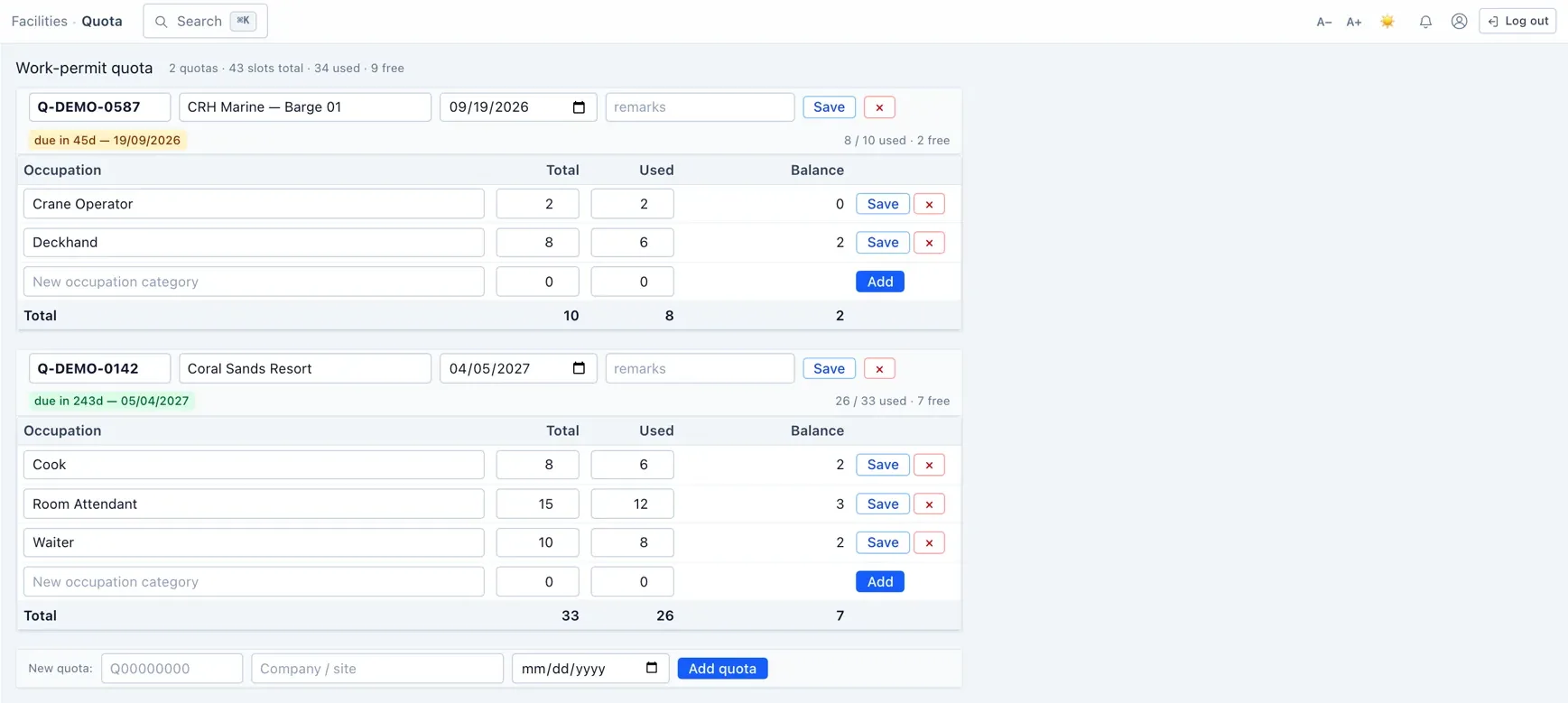
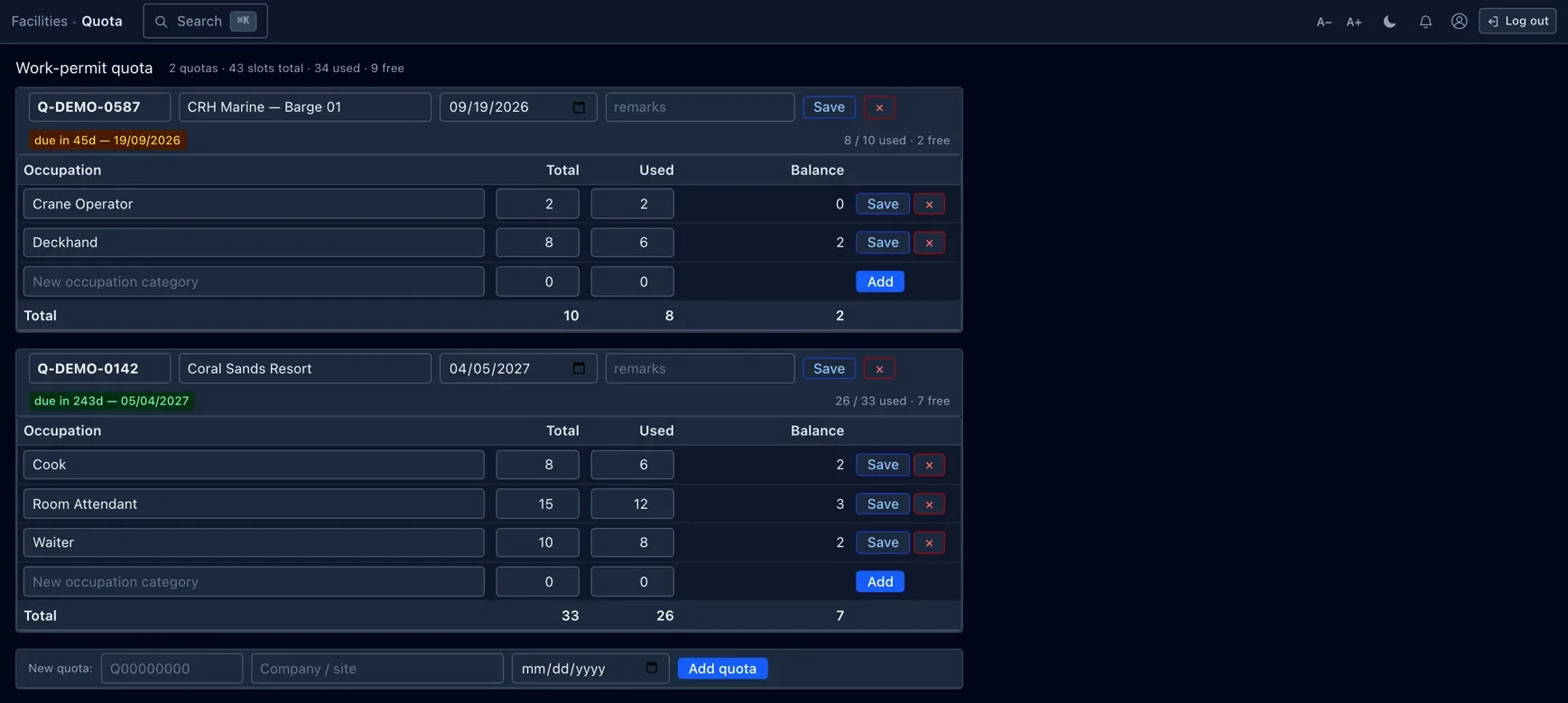
One check runs every night and looks at four things:
| What | When it counts as “expiring” |
|---|---|
| Employee documents | The document's own expiry date — passport, work permit, visa, medical, and so on. |
| Contracts | The contract end date on the employee's record. |
| Probation periods | The probation end date on the employee's record. |
| Quota permits | The permit's expiry date. |
When the warnings go out
Each item is warned about as it gets closer, at these marks: 90 days · 60 days · 30 days · 7 days · and on the day it expires.
So a work permit with three months left is flagged at the 90-day mark, again at 60, at 30, at 7, and on the day itself — it doesn't warn once and then go quiet. Anything more than 90 days away isn't flagged yet.
Who gets notified
This is the part people ask about most, so here it is plainly. Anyone whose role can manage employees gets the alert — and so does every Admin. More precisely, it goes to everyone whose role carries the Employees · Manage permission, plus all Admins (an Admin can do everything, so they are always included).
- You change who's notified by changing roles, not a recipient list. There is no “send these alerts to these three people” screen. To start or stop someone receiving alerts, give or remove Employees · Manage on their role under Roles.
- Everyone in that group sees everything. Alerts are not narrowed to a person's own department, site or team — every recipient gets the full picture.
The alert people receive
There are two ways an alert can reach a person, and each person gets one tidy summary rather than a flood — something like “12 employee documents, 3 contract ends and 1 quota permit are approaching expiry,” with a link through to the details.
- The in-app bell always lights up for everyone in the group.
- Email only goes to people who have switched Expiry alert emails on for themselves under Account › Preferences (and only if email is set up for the instance). By default the bell is on and email is off, so people opt in to email.
If a fresh summary is due the next night, it refreshes the unread one instead of piling up a second notification.
Sending alerts to Slack, Teams or another system
If your instance has webhooks turned on, expiry events can also be pushed out to Slack, Teams or another system. Unlike the human summary, those go out one message per item — a single card naming the person and the exact date — because that is what is useful in a chat channel. You set these up under Webhooks, where you can point an endpoint at a single company and choose which events it receives.
What you can — and can't — change
| Thing | Where |
|---|---|
| Who receives alerts | Roles — who holds Employees · Manage (it follows the permission). |
| Whether you get them by email | Account › Preferences › Expiry alert — your own choice; the bell is always on. |
| Slack / Teams / other-system alerts | Webhooks — fully up to you. |
| The 90 / 60 / 30 / 7 / 0-day marks | Fixed — the same for everyone. |
| That it's the Employees · Manage group | Fixed. |
Managing it day to day
The Expiry alerts screen shows what's coming up and will be in tonight's alerts, a history of what has already been sent, and a Re-arm button next to any item.
- Re-arm tells HumanR to warn about that item again at its next mark, even though it was already warned — useful when a warning was missed or someone needs a fresh reminder. (Re-arming is recorded in the audit trail.)
- Run scan now — on both this screen and the Maintenance page — is for when you don't want to wait for the nightly run. Running it twice is harmless: it never re-sends anything that already went out.
If both notifications and webhooks are switched off for the instance, the Expiry alerts screen isn't there at all.
Permissions & gotchas
- Employees · Manage — opens the Expiry alerts screen, and is the permission that defines the audience for the alerts. Admins are always included.
- Email delivery also depends on each person's own Expiry alert preference and on email being configured for the instance.
Worth remembering
- You change who is alerted through Roles, not a recipient list — everyone with the permission is in.
- The bell always fires; email is opt-in per person.
- The 90/60/30/7/0-day marks are fixed and the same for every company.
- An item with no expiry date is never flagged; re-arm brings one back for another warning.
- Nobody holding Employees · Manage means nobody is alerted — check this first if alerts go quiet.