Administration
Webhooks guide
Webhooks push HumanR events out to other systems — a message in a Slack or Teams channel when payroll is finalized, or a notification to your own software when a permit is about to expire. This guide covers adding an endpoint, choosing events, signing, and reading the delivery log.
This is the guide HumanR users read inside the product, published as-is. It is written for someone with the screen in front of them, so it describes buttons you cannot click from here — which is rather the point: you can check how the product behaves before you commit to it.
What webhooks do
A webhook is a web address (an “endpoint”) that HumanR sends a message to whenever something you care about happens. It's how HumanR talks to other systems automatically — most commonly to post updates into a Slack or Microsoft Teams channel, but it can point at any system that accepts incoming messages.
You can have up to 25 endpoints. That's plenty for a channel or two per team and a couple of system integrations.
Add an endpoint
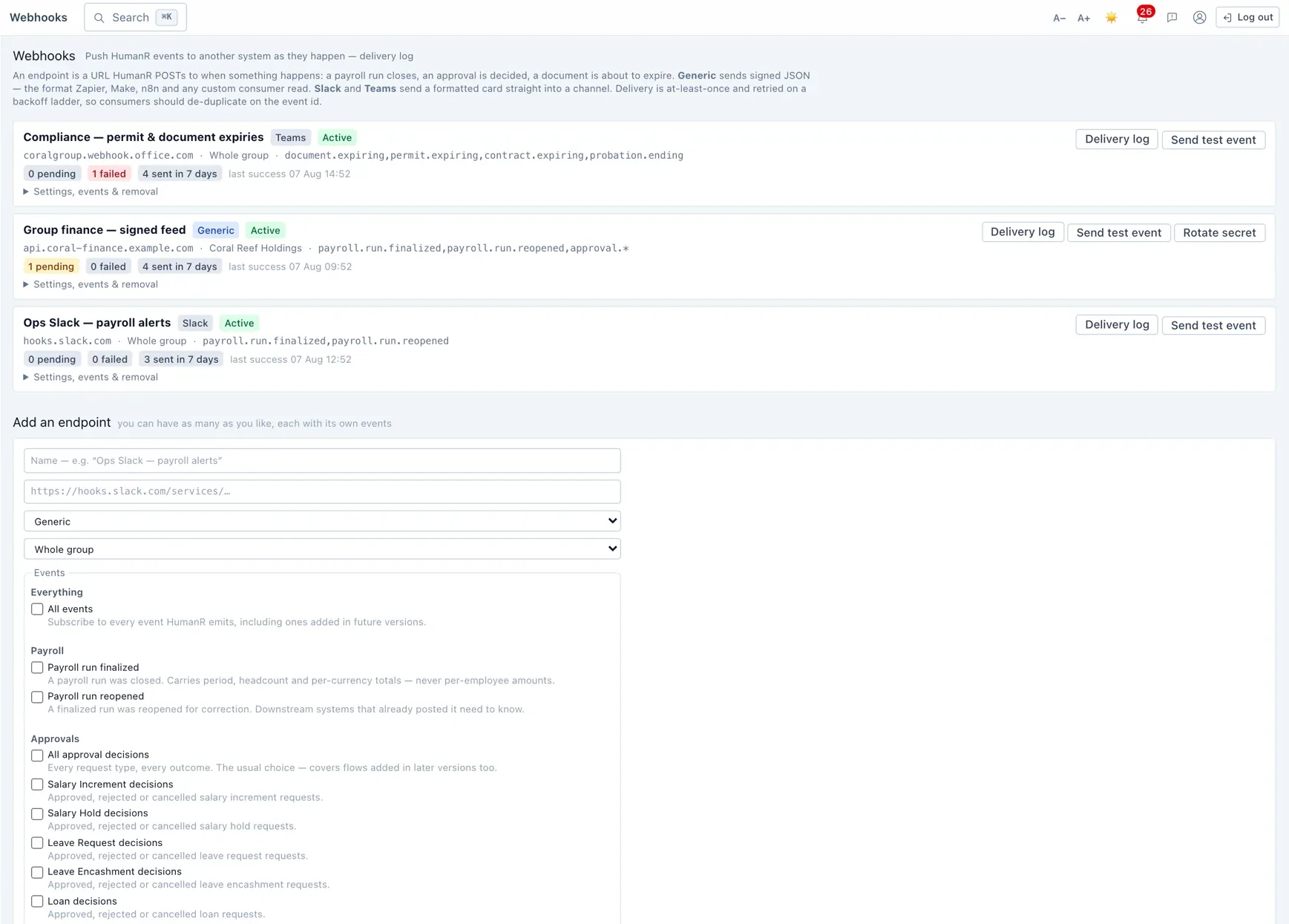
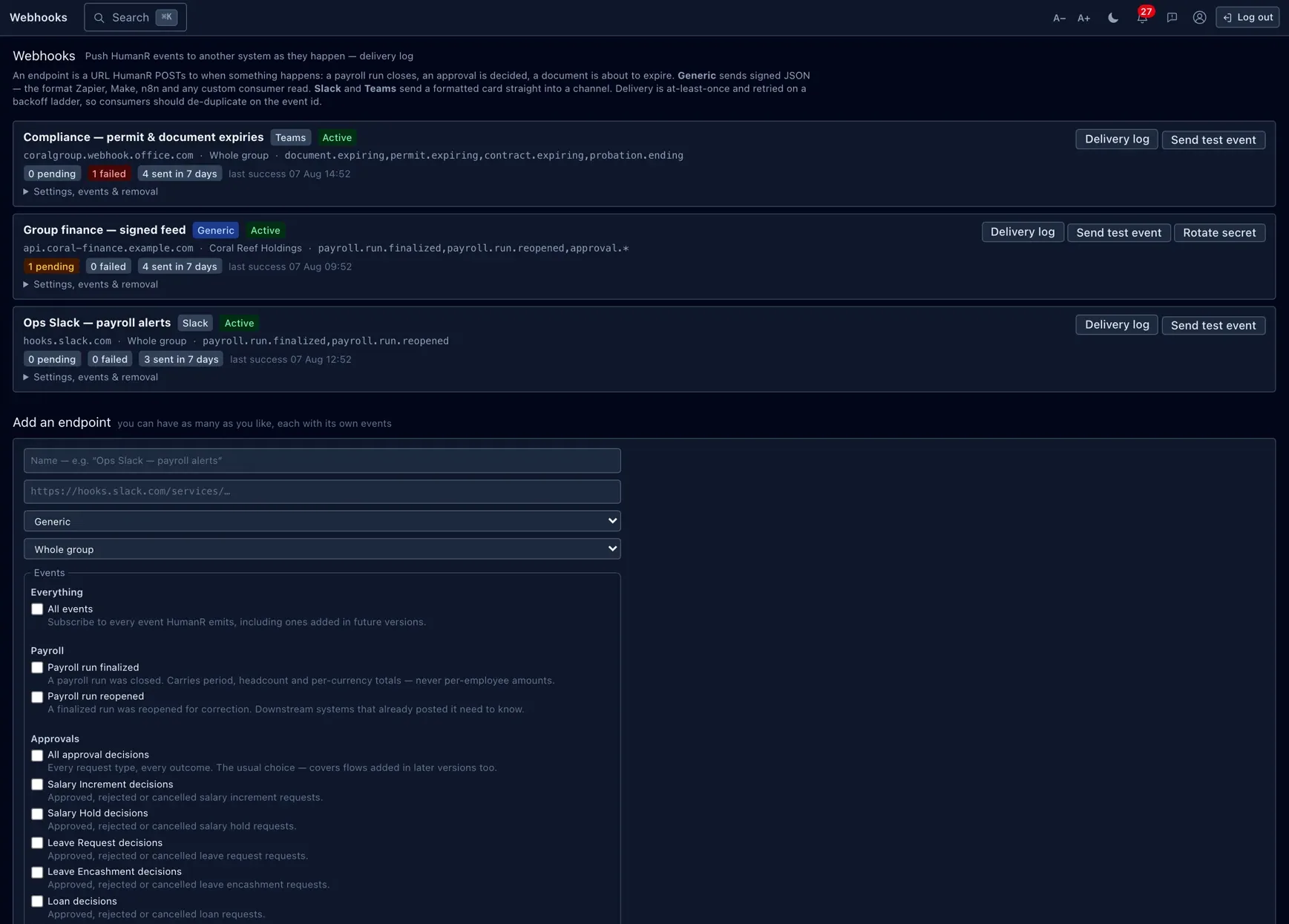
To add one, give it:
- A name you'll recognise (e.g. “HR channel — Teams”).
- The URL to send to.
- A format — Slack, Teams, or Generic for your own system. Slack and Teams get a nicely formatted card; Generic gets the raw event.
- Optionally, a single company to scope it to, and an active/inactive toggle.
hooks.slack.com) and Teams only a genuine Teams address
(…webhook.office.com). Paste the incoming-webhook URL you copied from
Slack or Teams.
Choosing events
Each endpoint subscribes to the events it should hear about. The catalogue includes:
- Payroll — a run finalized or reopened.
- Expiry — a document, contract, probation or quota permit approaching its date (the counterpart to the Expiry alerts guide, one message per item).
- Approvals — a request approved or rejected, across the different request types.
You can pick individual events, or use a wildcard to catch a whole family — for example everything approval-related, or simply everything.
Use the Send test button to fire a harmless test message and confirm the channel is wired up before you rely on it.
Signing & secrets
For a Generic endpoint (your own system), HumanR can sign each message with a shared secret, so the receiver can verify it genuinely came from HumanR and wasn't tampered with. Slack and Teams don't need this — their secret is already built into the URL you pasted.
When you rotate a secret, the old one keeps working for a short overlap (about a week), so you have time to update the other system without missing a beat.
The delivery log & retries
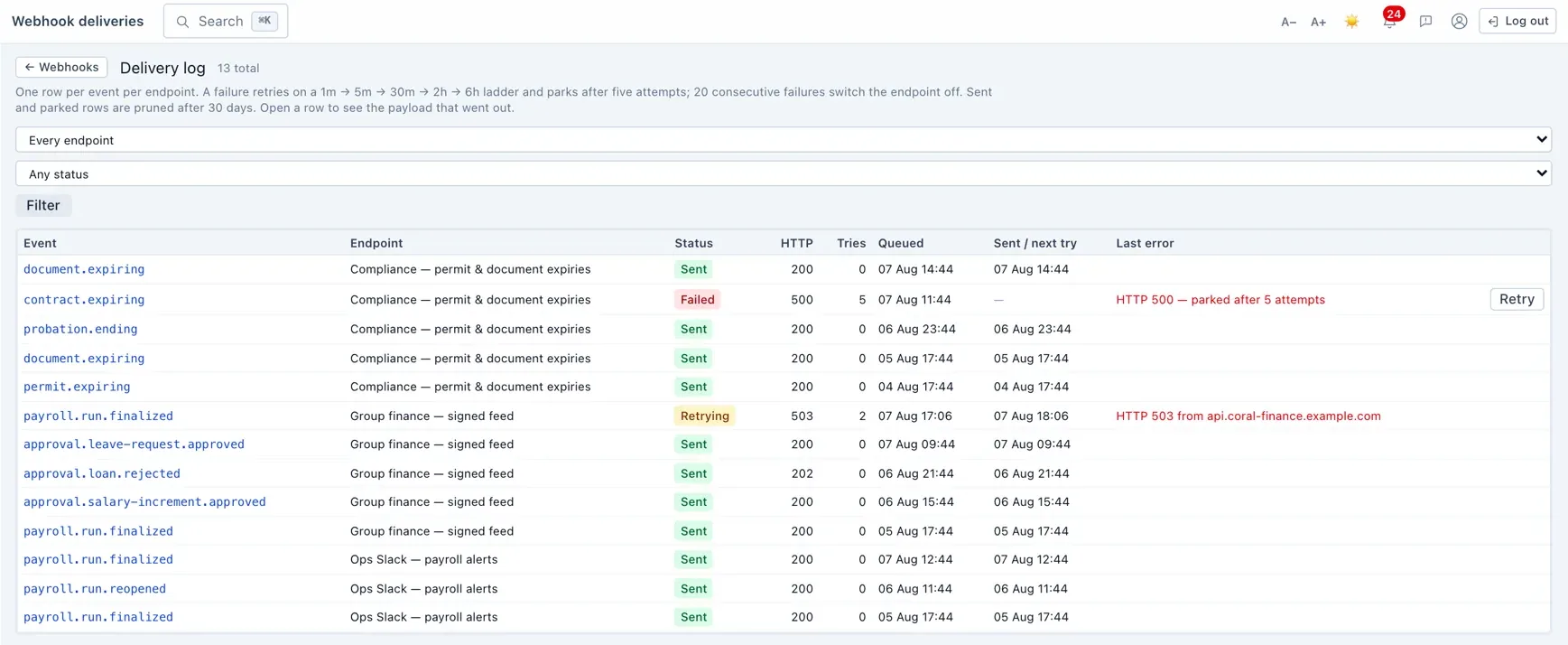
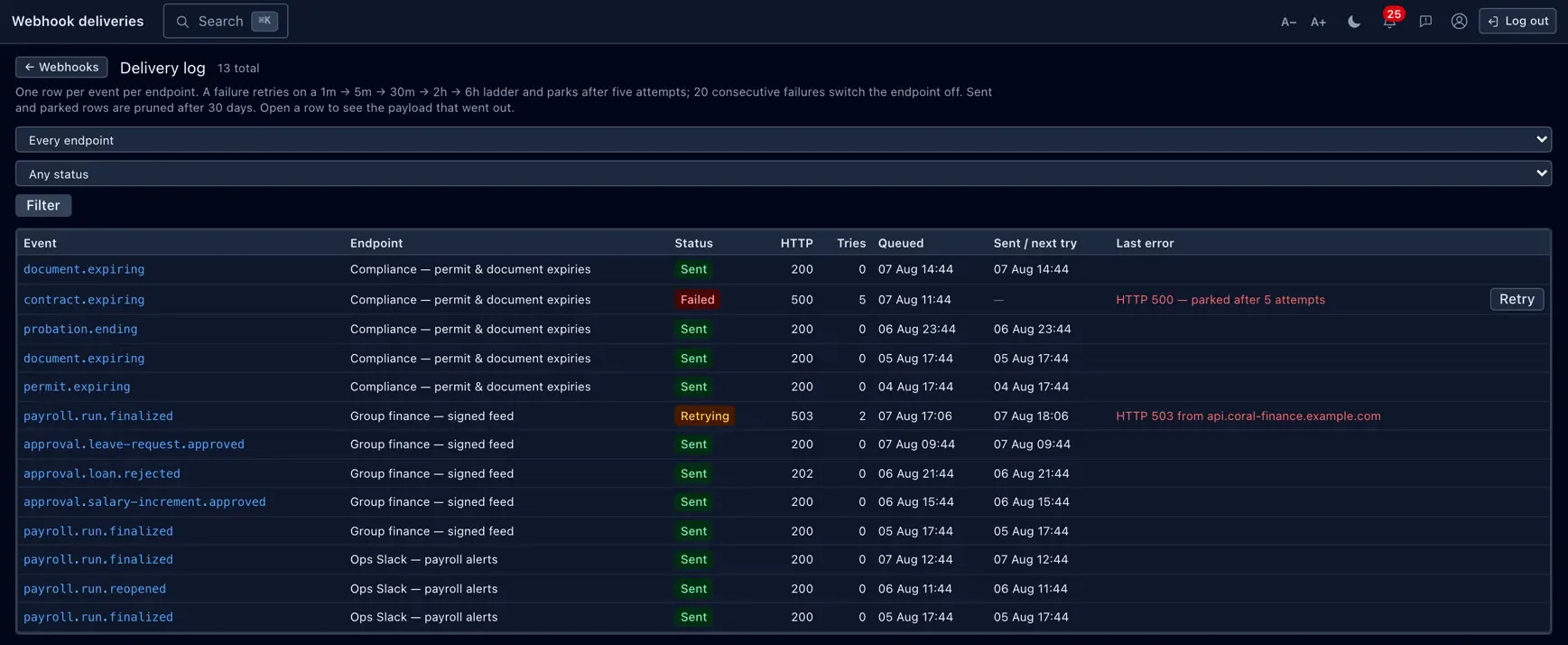
Every send is recorded so you can see what went out and whether it landed — pending, delivered or failed. HumanR is resilient about failures:
- A failed message is retried with growing gaps (a minute, then five, then longer) rather than hammering a system that's down.
- After several straight failures a message is parked, and an endpoint that keeps failing is eventually disabled automatically so a dead URL doesn't pile up forever.
- The log is kept for about 30 days.
Permissions & gotchas
- Webhooks · Manage — the one permission for setting up and managing endpoints.
- Webhooks is an optional module: if you don't see it, it hasn't been switched on for your instance yet (that's an operator step, plus granting the permission).
Worth remembering
- Up to 25 endpoints; Slack/Teams URLs must match their real addresses.
- Use Send test before relying on a new endpoint.
- Failures back off and retry; persistently broken endpoints disable themselves.
- Signing is for Generic endpoints; rotating a secret keeps the old one valid briefly.
- For expiry-specific behaviour, see the Expiry alerts guide.