Getting started
Filter & search guide
The same filter-and-search box sits above most lists in HumanR — staff, leave, payroll, loans, documents, accommodation and more. It behaves identically on every one; only the columns change to match the list. One box replaces a row of dropdowns: pick several values at once, search by part of a name, exclude a value, and share the result as a link. You never have to type the syntax: + Add filter writes it for you.
This is the guide HumanR users read inside the product, published as-is. It is written for someone with the screen in front of them, so it describes buttons you cannot click from here — which is rather the point: you can check how the product behaves before you commit to it.
Three ways to filter
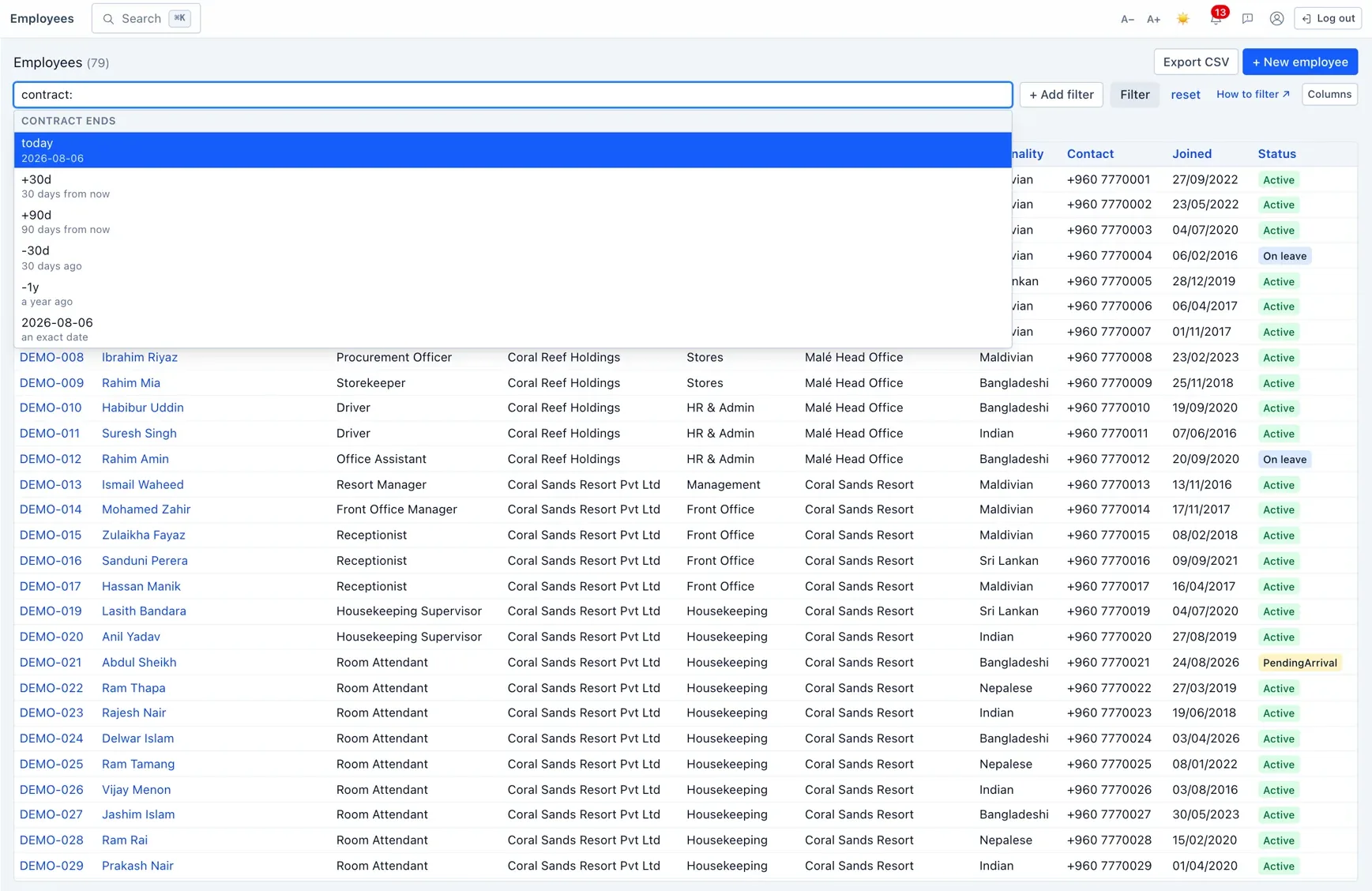
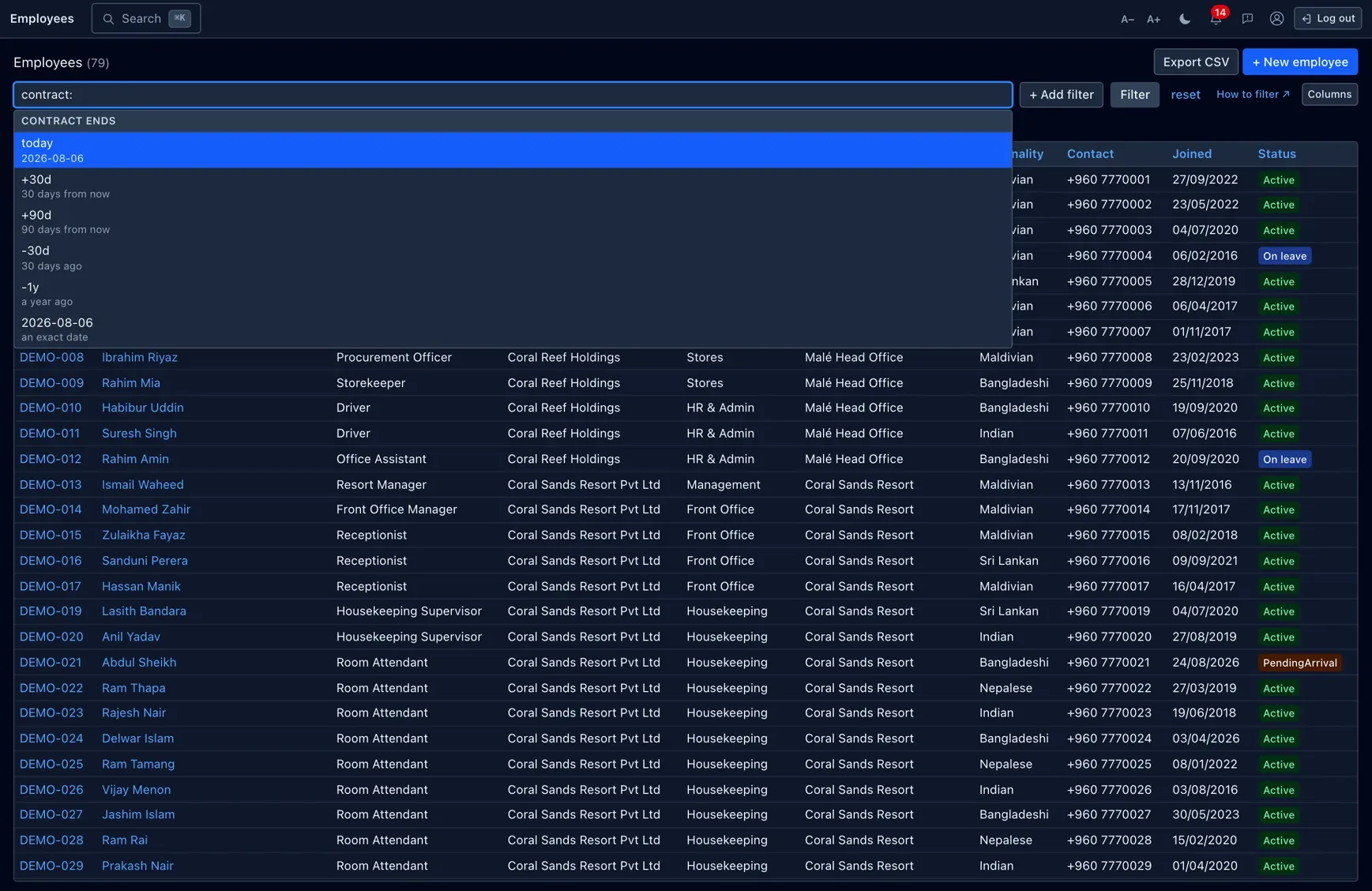
All three end up in the same place — pick whichever suits you:
- + Add filter — the no-typing route. Pick a column, pick how to match it, tick the values, press Apply. Multi-select is checkboxes. This is the old dropdown panel, except it holds every column and lets you tick more than one value.
- Type in the box — start typing a column name and the list appears; press Enter or Tab to take a suggestion. After the colon it suggests real values from your data. ↑ ↓ to move, Esc to close.
-
Just type a word — anything that isn't a
column:valueis searched across the list's main text columns at once. On the staff list that's staff number, name, nickname, contact, WhatsApp and email; other lists search their own.
Press Enter (or the Filter button) to apply. reset clears everything and forgets the remembered filter.
Chips — what is applied
Once applied, each filter appears below the box as a plain-English chip: Department is any of FINANCE or ADMIN × Click its × to drop that one filter and re-run — you never have to edit the text to undo something.
A chip with a dashed border is one the list applied for you (see Filters a list adds for you). A red chip is one that could not be applied — see When it turns red.
Plain search
Type any word on its own and it is matched against the list's main text columns at once, anywhere in the value, ignoring case. On the staff list those are staff number, name, nickname, contact no, WhatsApp, email; every other list searches its own — a document library searches titles, a payroll list searches names and staff numbers, and so on.
ahmed | anyone whose name, number or contact contains “ahmed” |
7791 | a phone number fragment, or a staff number containing 7791 |
"ahmed ali" | the two words together — quotes keep them as one search |
Two separate words (ahmed ali, no quotes) are two searches, and a row must match
both.
Filtering by a column
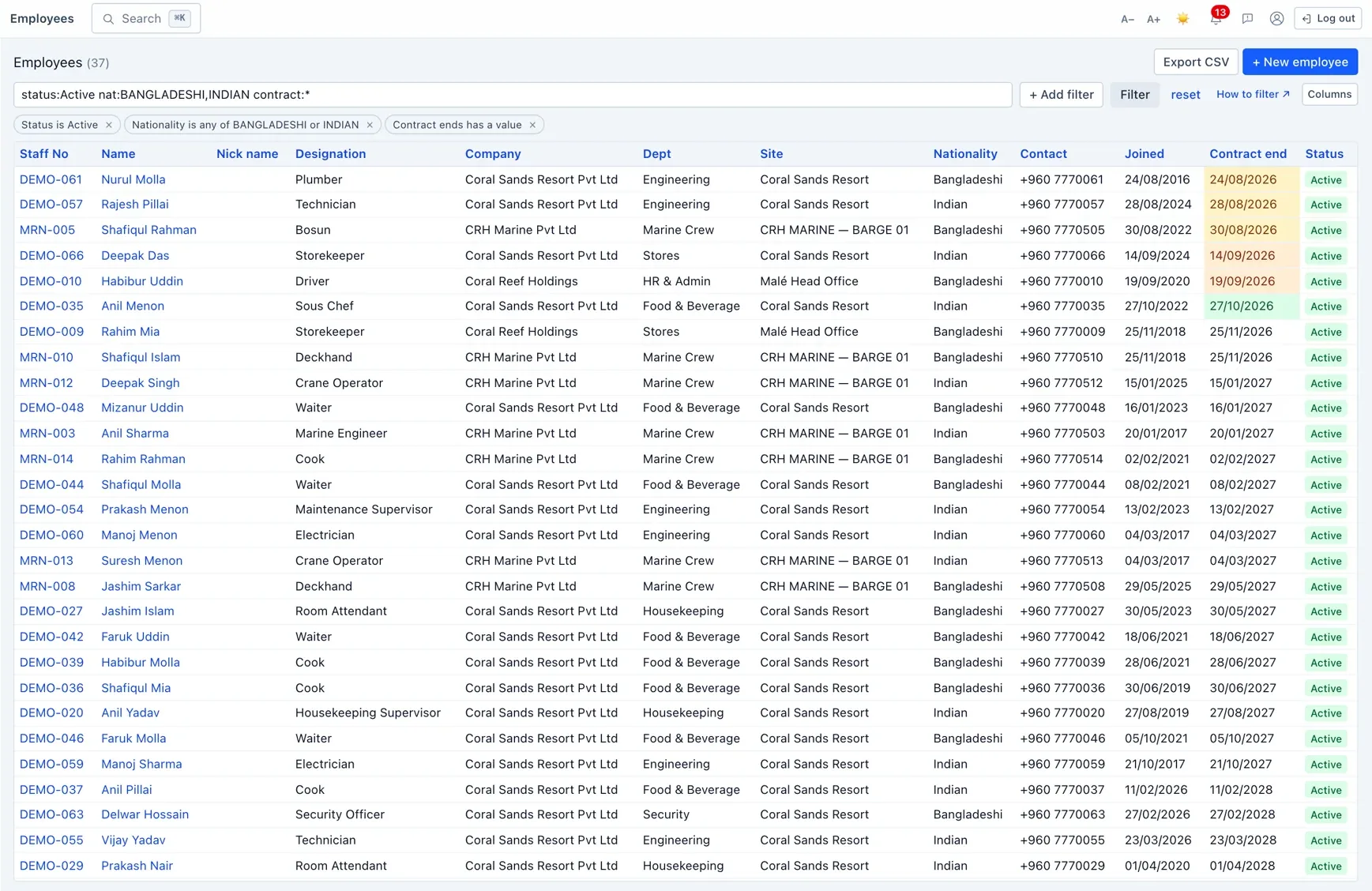
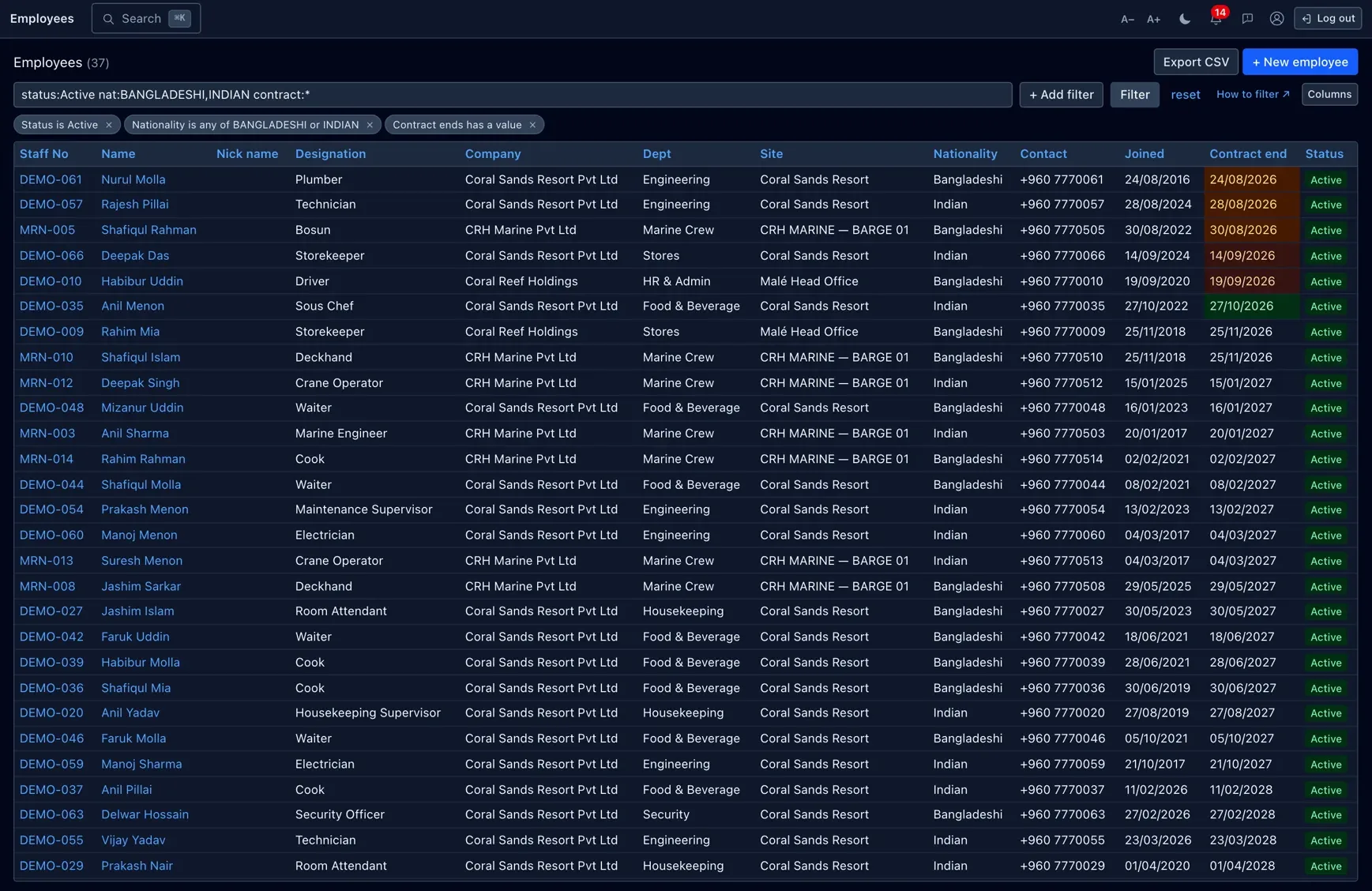
The shape is column:value — no spaces around the
colon. Several filters separated by spaces must all match:
status:Active | currently active staff |
department:FINANCE | one department, exact name |
department:"MARINE OPERATIONS" | a name with spaces — wrap it in quotes |
status:Active department:FINANCE | both must be true |
Columns answer to their everyday names as well: dept:, nat:,
phone:, manager:, grade:, contract:,
probation: and more all work — see All columns.
Autocomplete inserts the quotes for you whenever a value needs them.
Several values at once
A comma means “any of these” — this is the thing the old dropdowns could not do:
department:FINANCE,ADMIN | in either department |
department:"MARINE OPERATIONS","SITE OPERATIONS" | quote each name that has spaces |
status:Active,OnLeave | active or on leave |
nationality:BANGLADESHI,INDIAN,NEPALI | as many as you like |
Building one by typing: pick the first value as usual, then type a ,. The list reopens, and from then on every value you pick keeps the list open — so the comma is typed once, not once per value. Press space when you're done.
Or don't type at all: + Add filter → Department → is any of gives you checkboxes.
Partial matches — the LIKE equivalents
When you don't want to list every value, match on part of the name instead. ~ is
“contains”, ^ is “starts with”:
| In SQL | Here | Finds |
|---|---|---|
LIKE '%BOATYARD%' | department:~BOATYARD | BOATYARD, BOATYARD-FIBER, and FIBER - BOATYARD |
LIKE 'BOATYARD%' | department:^BOATYARD | only the ones that begin with it |
LIKE '%fin%' | department:~fin | FINANCE, FINANCE & ACCOUNTS, … |
NOT LIKE '%BOATYARD%' | -department:~BOATYARD | everyone else |
Case doesn't matter, and you never type % yourself. One ~ filter
often replaces a long comma list — department:~BOATYARD catches every BOATYARD
department, however many there are and whatever gets added later.
Excluding — the minus
A leading - inverts any filter, including a list or a partial match:
-nationality:BANGLADESHI | everyone else |
-department:FINANCE,ADMIN | in neither department |
-status:Terminated,Resigned | nobody who has left |
Rows with nothing in that column count as “not it” — -department:~fin includes
staff with no department at all, which is normally what you mean.
Blank & filled
email:!* | no email on file — the data-cleanup filter |
email:* | has an email |
department:!* | not assigned to any department |
contract:!* | no contract end date recorded |
Read * as “has something”. These take no value.
Dates & expiries
Write a date as 2026-01-31, or relative to today: today,
+90d (90 days ahead), -30d, +6m, -1y.
Relative dates are worked out when you press Enter, so the link you share is a fixed date.
For a calendar edge rather than a rolling window: month-start, month-end,
prev-month-start, prev-month-end, year-start,
prev-year-start, prev-year-end. joined:>=year-start means joined
this year so far, where -1y would mean joined in the last twelve months.
contract:<=+90d | contracts ending within 90 days — including already expired |
probation:<=+30d | probations ending within a month |
joined:>=2025-01-01 | joined this year or later |
joined:>=2025-01-01 joined:<=2025-12-31 | joined during 2025 |
joined:2025-01-01..2025-12-31 | the same thing, as a range |
lastticket:<-1y | no ticket in over a year |
<= and >= include the day itself; < and
> don't. An expiry chase deliberately has no lower bound, so rows that expired
last month — the urgent ones — stay in the list. When you filter on an expiry the list grows a
matching date column, sorted with the most urgent first.
Numbers & ranges
devicepin:10004 | exactly |
devicepin:>=10000 | at least |
devicepin:10000..20000 | between, inclusive of both ends |
.. works on dates too. Both ends are included.
All operators
Which ones apply depends on the kind of column — + Add filter only ever offers the legal ones, and typing an illegal one tells you which are allowed.
| Write | Means | Works on | Example |
|---|---|---|---|
: | is / equals | every kind | status:Active |
, | is any of | text, choice, lookup | dept:FINANCE,ADMIN |
~ | contains | text, lookup | dept:~fin |
^ | starts with | text, lookup | dept:^BOAT |
> < | after / before, more / less | date, number | joined:>2025-01-01 |
>= <= | on or after / on or before | date, number | contract:<=+90d |
.. | between (inclusive) | date, number | devicepin:100..200 |
* | has a value | text, lookup, date, number | email:* |
!* | is blank | text, lookup, date, number | email:!* |
- | not — inverts any of the above | every kind | -status:Resigned |
" " | keeps spaces together | every kind | dept:"HUMAN RESOURCES" |
Everything is joined with AND, and there is no or keyword or brackets — the comma
is how you say “or”, within one column.
The staff columns
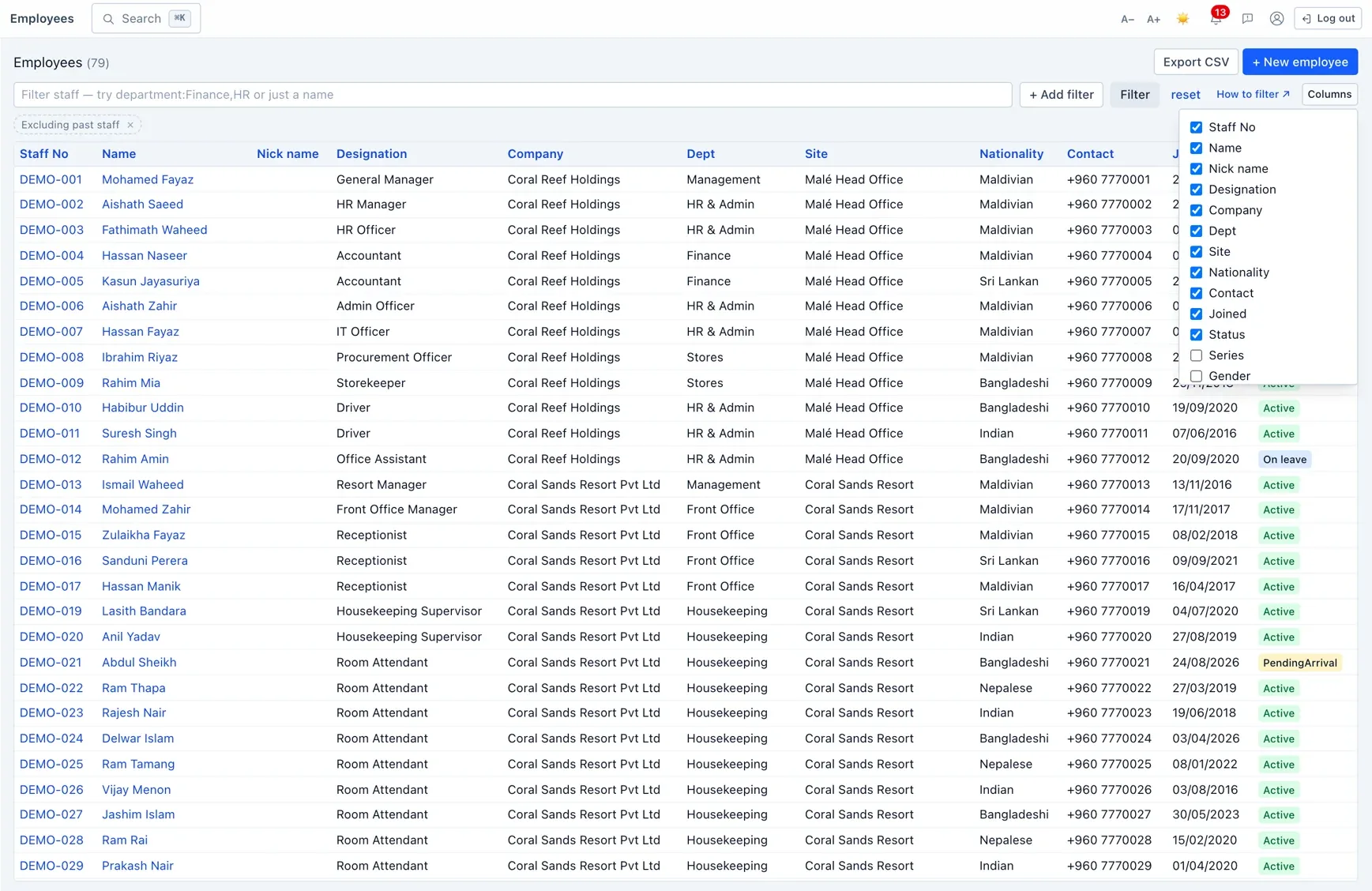
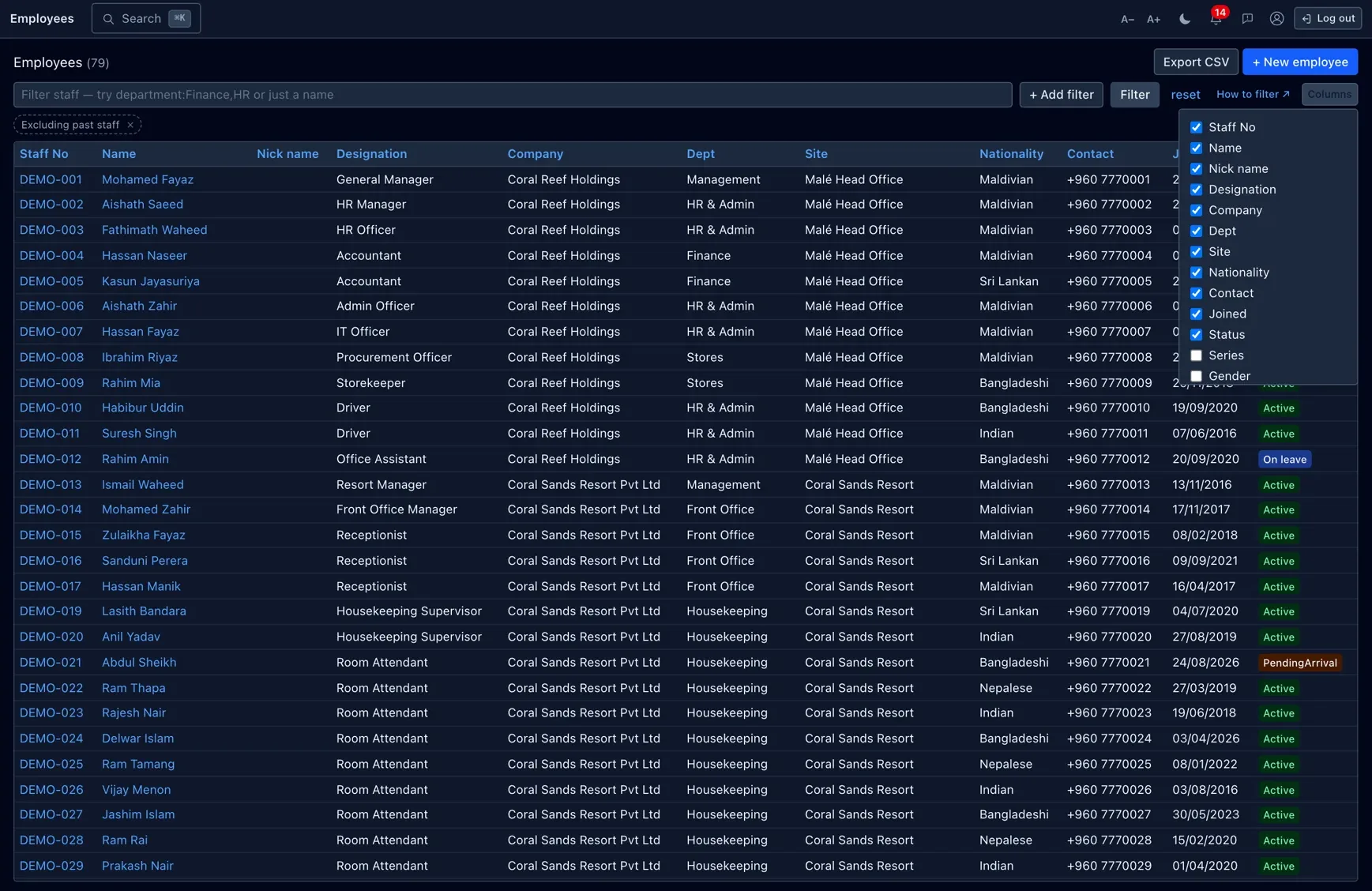
These are the columns on the staff list — the fullest set, shown here as the worked example. Every other list (leave, payroll, accommodation, documents and the rest) has its own columns; open + Add filter on that list, or start typing in its box, to see them. The operators and syntax on this page are the same for all of them.
Every column below can be filtered on. The also answers to spellings mean exactly the same thing — use whichever you'd say out loud.
| Column | Type | Also answers to |
|---|---|---|
| Identity | ||
empno | text | no, staffno |
name nickname shortcode | text | — |
gender | choice | — |
nationality | text | nat, country |
religion | text | — |
maritalstatus | text | married, marital |
series | staff-no prefix | series:BD → staff numbers starting BD- |
| Contact | ||
contact | text | phone, mobile |
whatsapp email | text | — |
| Placement | ||
department | lookup | dept, division |
designation | lookup | title, job |
site | lookup | location, worksite |
company | lookup | — |
| Employment | ||
status | choice | Active, OnLeave, Terminated, Resigned, … |
joined | date | — |
contractexpiry | date | contract |
probationexpiry | date | probation |
terminated | date | left |
reportsto | text | manager |
employmenttype | choice | type, workercategory — Local, Foreign, Unknown |
hierarchylevel | text | level, grade |
ticketeligibility | yes/no | ticket, ticketeligible |
lastticket | date | — |
devicepin | number | pin |
| Skills | ||
vehicles licence motorcycle | text | — |
| Pay | ||
salarycategory | text | salary |
paymentcategory | text | payment |
pension | choice | — |
bankaccount | text | restricted — see below |
| Personal | ||
dob, addresses, emergencycontactname, emergencycontact, emergencycontactaddress, terminationreason, specialremarks | date / text | restricted — see below |
Not sure of the name? Type the first few letters — the list matches the column's label and its nicknames, so “div” finds Department.
Filters a list adds for you
A list can start with a sensible default already applied, shown as a dashed chip so you can see it and drop it. The staff list is the clearest example: it leaves out anyone terminated or resigned unless you ask otherwise — Excluding past staff × Click its × to include everyone.
On the staff list this default also steps aside the moment you mention status:
yourself — so status:Terminated,Resigned shows leavers only, and
status:Terminated,Resigned department:* narrows that to leavers who still hold
a department. Other lists apply their own defaults in the same way, and any of them comes off
with a click.
When it turns red
A filter that can't be applied is never quietly ignored — it comes back as a red chip saying why, and the rest of the query still runs:
- Unknown filter “xyz” — no such column. Check the list.
- Status can't be filtered that way. Try: is, is any of. — the operator doesn't suit that column.
- “soon” isn't a date. Try 2026-07-30, today, +90d or -30d. — the value didn't parse.
- You don't have permission to filter by date of birth. — see below.
This is deliberate: a filter that silently did nothing would show you a wrong-looking list with no explanation.
Sharing & memory
The whole filter lives in the page address, so copy the URL and send it — the person who opens it sees the same list (through their own permissions). Bookmark it for a view you run every week. Old bookmarks from before the filter box still work; they redirect to the new form automatically.
Your last filter is remembered, per list. Come back to the same list later — from the menu, from a link, tomorrow morning — and it's still applied. Each list remembers its own filter separately. Press reset to clear it and start from the full list.
Clicking the box while it's empty offers your recent searches, the last ten. Both of these are kept in this browser only, never on the server.
Restricted columns
Pay and personal columns — bank account, date of birth, addresses, emergency contacts, termination reason, special remarks — need the Sensitive · Pay or Sensitive · Personal permission. Without it they are absent from the suggestions and from + Add filter, and typing one is refused rather than ignored. That's on purpose: filtering on a date of birth would let someone narrow it down guess by guess, which is exactly why those columns can't be sorted on either.
Worked examples
Copy any of these into the box:
| Filter | What you get |
|---|---|
department:FINANCE,ADMIN | staff in either department |
department:~BOATYARD | every BOATYARD department at once |
contract:<=+90d status:Active | active staff whose contract ends within 3 months, expired first |
probation:<=+30d | probations to confirm this month |
email:!* status:Active | active staff with no email — a cleanup list |
joined:>=-30d | joined in the last 30 days |
-nationality:MALDIVIAN status:Active | active expatriate staff |
site:"K.MALE" designation:~engineer | engineers of any grade at one site |
status:Terminated,Resigned terminated:>=-1y | everyone who left in the past year |
series:BD status:Active | active staff on the BD staff-number series |
department:!* | staff not assigned to a department |
manager:~hassan | everyone reporting to a Hassan |
Whatever you end up with, Export CSV gives you the same rows as a file, and clicking a column header sorts them without losing the filter.