People
Staff records guide
The staff list is the heart of HumanR — nearly every other screen (payroll, leave, attendance, deployment) hangs off it. This guide covers adding people, keeping their records current, what you can see on a profile, how leavers and rehires are handled, and how personal data is protected.
This is the guide HumanR users read inside the product, published as-is. It is written for someone with the screen in front of them, so it describes buttons you cannot click from here — which is rather the point: you can check how the product behaves before you commit to it.
What a staff record is
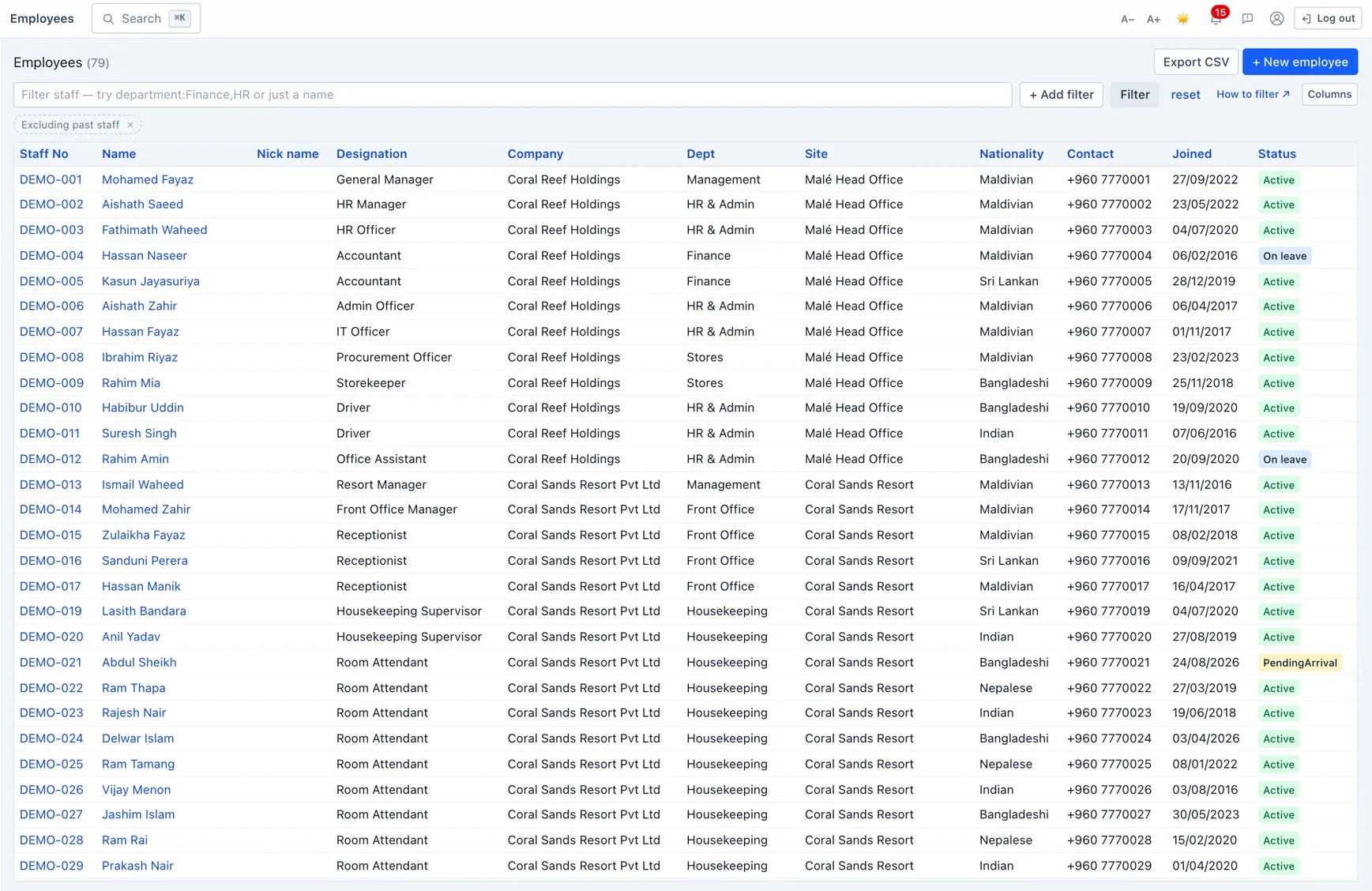
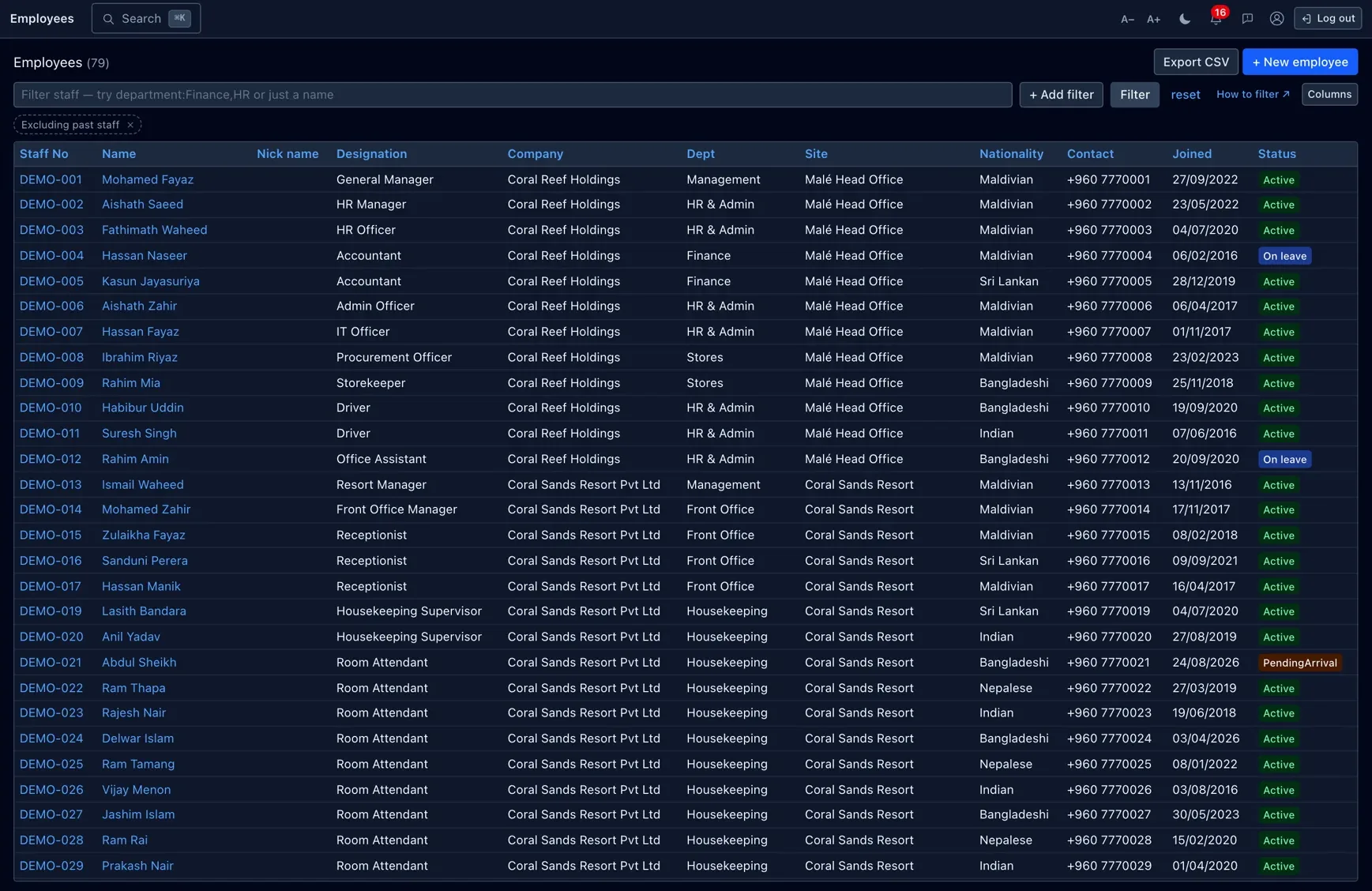
A staff record is the single profile for one person you employ. It holds their name and staff number, their job and reporting line, contract and probation dates, personal details, and links to everything else they touch — pay packages, leave, attendance, accommodation, uniforms and more.
Because so much hangs off it, the golden rule is records are kept, not deleted. A person who leaves is marked as having left (see Leavers & rehires) so their history — old payslips, past leave, documents — stays intact.
Add a staff record
Use Add employee on the staff list. Two things are always required:
- Staff number — must be unique. No two people, past or present, can share one.
The part before the first dash is treated as the series (so
HO-0142belongs to theHOseries), which is how staff are grouped in some lists and reports. - Full name.
Everything else — designation, department, work site, join date, contact details — can be filled in now or added later.
Edit — only what you post is saved
Editing a record saves only the fields on the form you submit. Anything not on that form keeps its stored value — so opening one tab and saving it will never blank out a field that lives on another tab.
In practice this means you can safely update, say, someone's contact number without worrying about the rest of their record. Each save is written to the audit trail.
The staff profile at a glance
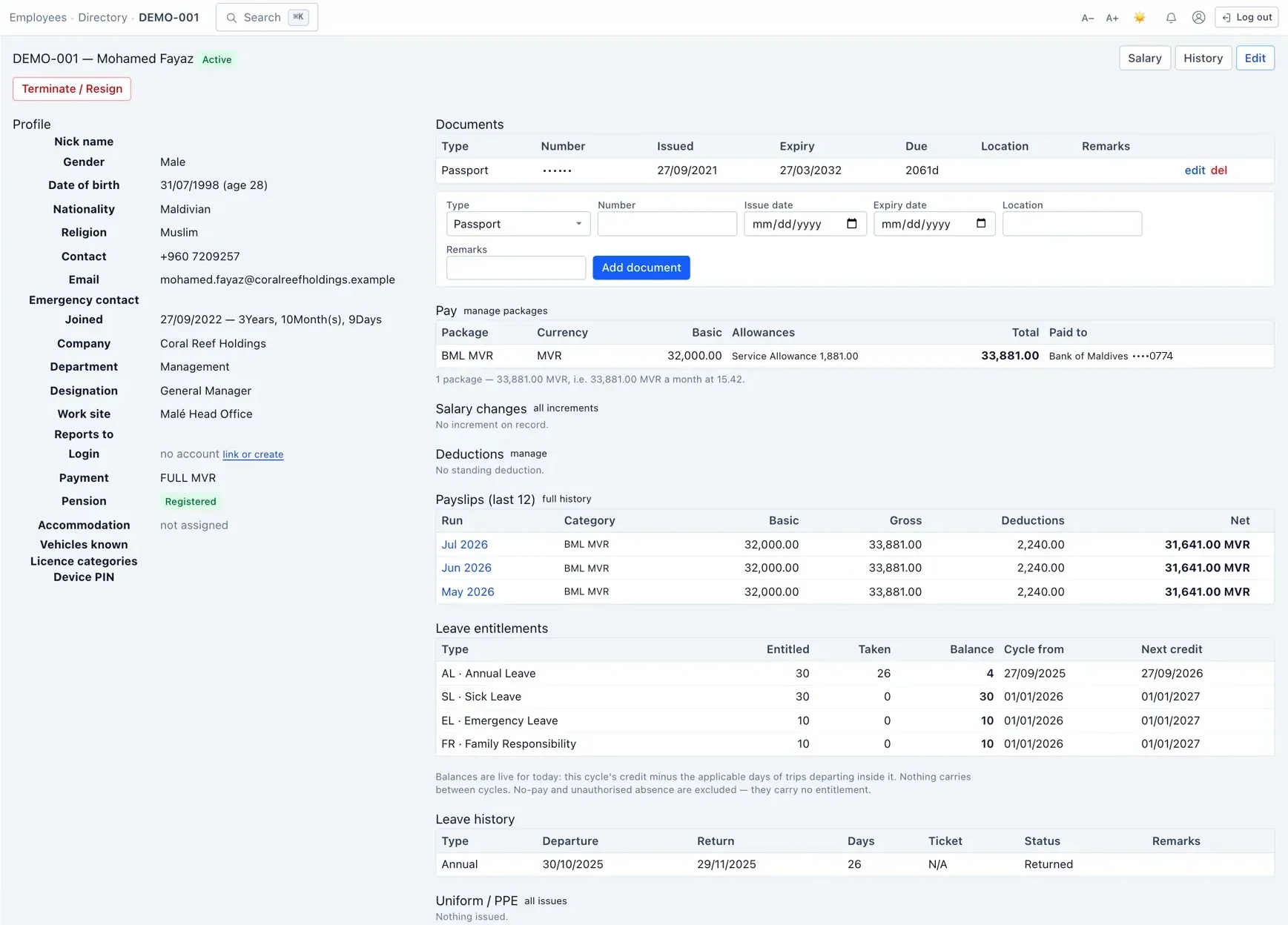
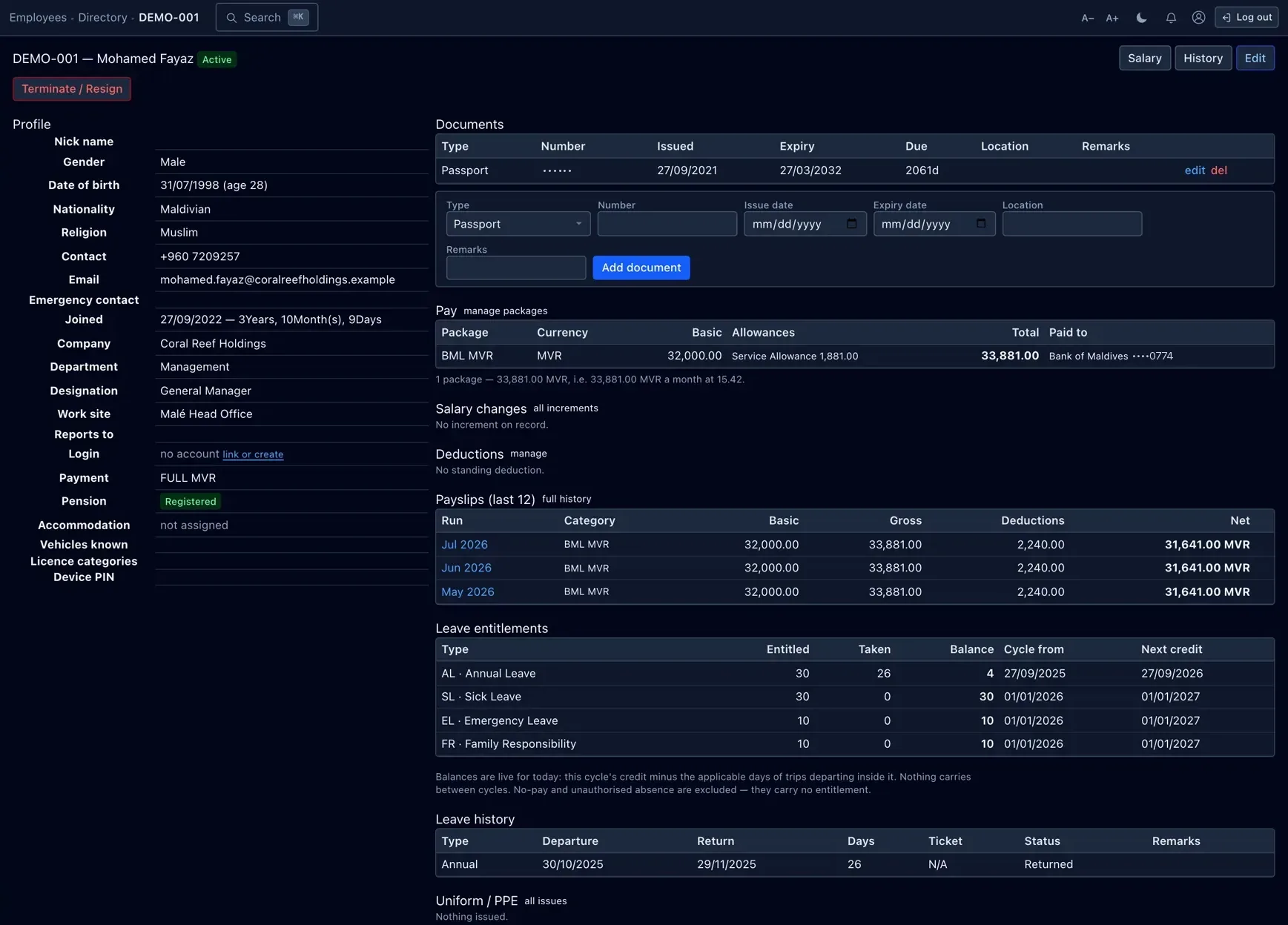
A person's profile pulls together everything about them in one place. Depending on your permissions you'll see:
| Section | What it shows |
|---|---|
| Login | Whether the person has a HumanR account, and a link to manage it. |
| Leave entitlements | Live balances by leave type — worked out on the fly, not stored. |
| Accommodation & uniforms | Where they're housed and what's been issued. |
| Holds | Any pay hold or flag currently on the person. |
| Pay packages & payslips | Shown only to viewers who hold the pay-sensitive permission. |
Pay figures, bank details and personal identifiers are masked unless you hold the matching sensitive permission — see Personal data & masking.
Leavers & rehires
When someone leaves, you Terminate the record and choose a reason (Resigned, Terminated, and so on). This doesn't delete anything — it:
- Closes their open deployment / posting rows so they stop appearing as “on site”.
- Locks their self-service login (if they had one) so they can no longer sign in.
- Takes them off the current roll — lists of “current staff” exclude anyone Resigned or Terminated.
If they come back, Reactivate reverses it and they return to the current roll with their history intact.
Personal data & masking
Sensitive fields are hidden unless your role is trusted with them. There are two groups:
- Personal — date of birth, home address, personal contacts and the like.
- Pay — salary, pay packages and bank details.
If your role doesn't carry the matching permission, those values appear masked or simply aren't shown.
Giving someone a login
A staff record and a HumanR user account are two different things, joined one-to-one: a record can have at most one account, and an account belongs to at most one person. You create and link accounts on Users › Employee logins, not on the staff record itself.
That's also where you hand out employee self-service access so a person can see their own payslips and request leave. The full walk-through is in the Users, roles & permissions guide.
Permissions & gotchas
- Employees · View — see the staff list and profiles.
- Employees · Manage — add, edit, terminate and reactivate.
- Personal and Pay sensitive permissions unlock the masked fields described above; without them you still see the record, just not those values.
Worth remembering
- Staff numbers are unique and never reused — the bit before the first dash is the series.
- Editing saves only the fields you submit; other fields keep their values.
- People are never deleted — Terminate then Reactivate, so history is preserved.
- “Reports to” points at a designation, not a person.
- Restricted columns are dropped from downloads, not just hidden on screen.