People
Documents guide
Two document jobs live in HumanR, and they are not the same thing. Company documents are the policies and memos staff must read and acknowledge, with a record of who has. Employee documents are the personal papers — passports, visas, permits — whose expiry you track so a renewal is never missed. This guide covers both.
This is the guide HumanR users read inside the product, published as-is. It is written for someone with the screen in front of them, so it describes buttons you cannot click from here — which is rather the point: you can check how the product behaves before you commit to it.
Company documents — what it is
A company document is a policy, SOP or memo that certain staff are required to read. The flow is always the same three moves: you publish it, the people it targets acknowledge it, and you track who has and who has not. The record of an acknowledgement is the evidence — captured once, kept forever.
Create & publish — managers
From Company docs › Library, + New document creates a draft with a reference no (a unique citation id), a title, a type (memo / SOP / policy / procedure / other), an owner and an effective date. A draft is invisible to everyone without the manage permission until it is published.
You then upload a file. Each upload is an immutable version, fingerprinted so the record can prove exactly which bytes a person acknowledged. Publish makes a version the one in force. A document that is retired is archived — it stays on the record as history rather than being deleted.
Audience
Who must read a document is set by audience rules: all staff, or by department, work site or designation. The rules add up — anyone matching any rule is in the audience.
Acknowledgement — the kiosk
Staff acknowledge on a full-screen kiosk — a stripped page with no sidebar, meant to be handed to the employee. It shows the current version (a PDF is embedded inline), and the person must:
- enter their staff number,
- type their full name as a signature stand-in, and
- choose I understand — or Refuses to sign, with a reason.
The typed name is checked against the person on file: you can drop names (a longer full name may sign with fewer of its parts) but you cannot add a name that is not theirs, which stops a mistyped staff number landing on a colleague's record.
Read compliance
Company docs › Read compliance is every published document at a glance — required, acknowledged and refused counts with a progress bar each. Open one to get the roster: everyone in the audience marked Acknowledged, Pending or Refused, filterable by department and exportable to CSV. Each acknowledged row carries its signature, witness, time and device; the whole thing is a live query, not a cached flag, so it is always current.
New versions & re-acknowledgement
Employee documents — what it is
Employee documents track the expiry of personal papers — passport, visa, work permit, insurance and the rest — so a renewal deadline is never a surprise. This side is about dates, not files: the app stores the details of each document (number, dates, where it is kept), not a scan of it.
Add a document
A document is added against an employee (from their profile) with:
| Field | Notes |
|---|---|
| Type | Passport, visa, work permit, insurance, driving licence, seaman medical… pick from the list. |
| Number | Sensitive — shown as *** to anyone without the personal-data permission, and left out of exports for them entirely. |
| Issue & expiry date | The expiry is what drives the tracking. Leave it blank and the document simply is not tracked. |
| Location | Where the physical paper is held (the office safe, the employee, an agent). |
There is no delete — a document that no longer applies is marked inactive, which drops it off the tracking list while keeping the history.
Documents due
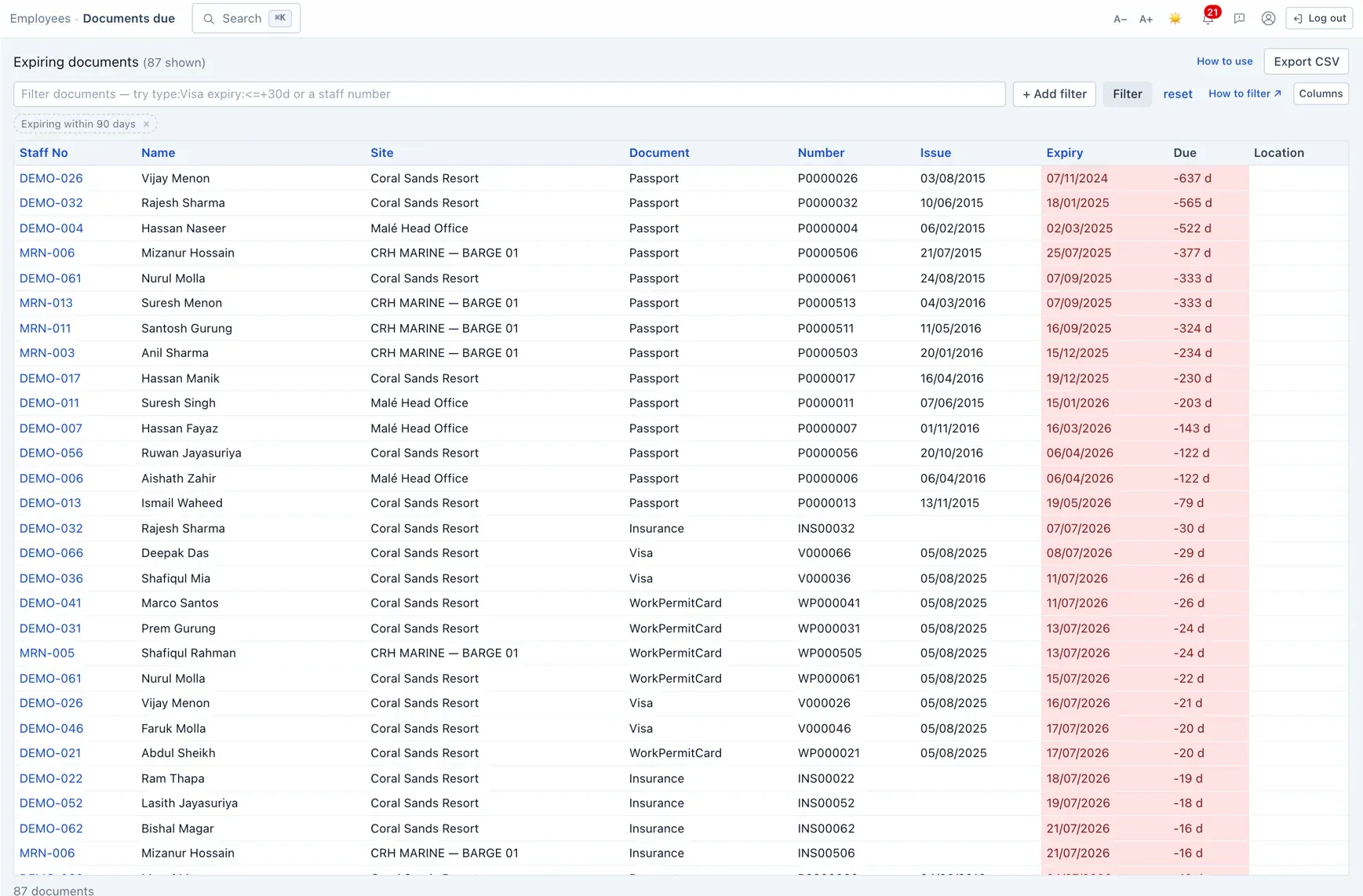
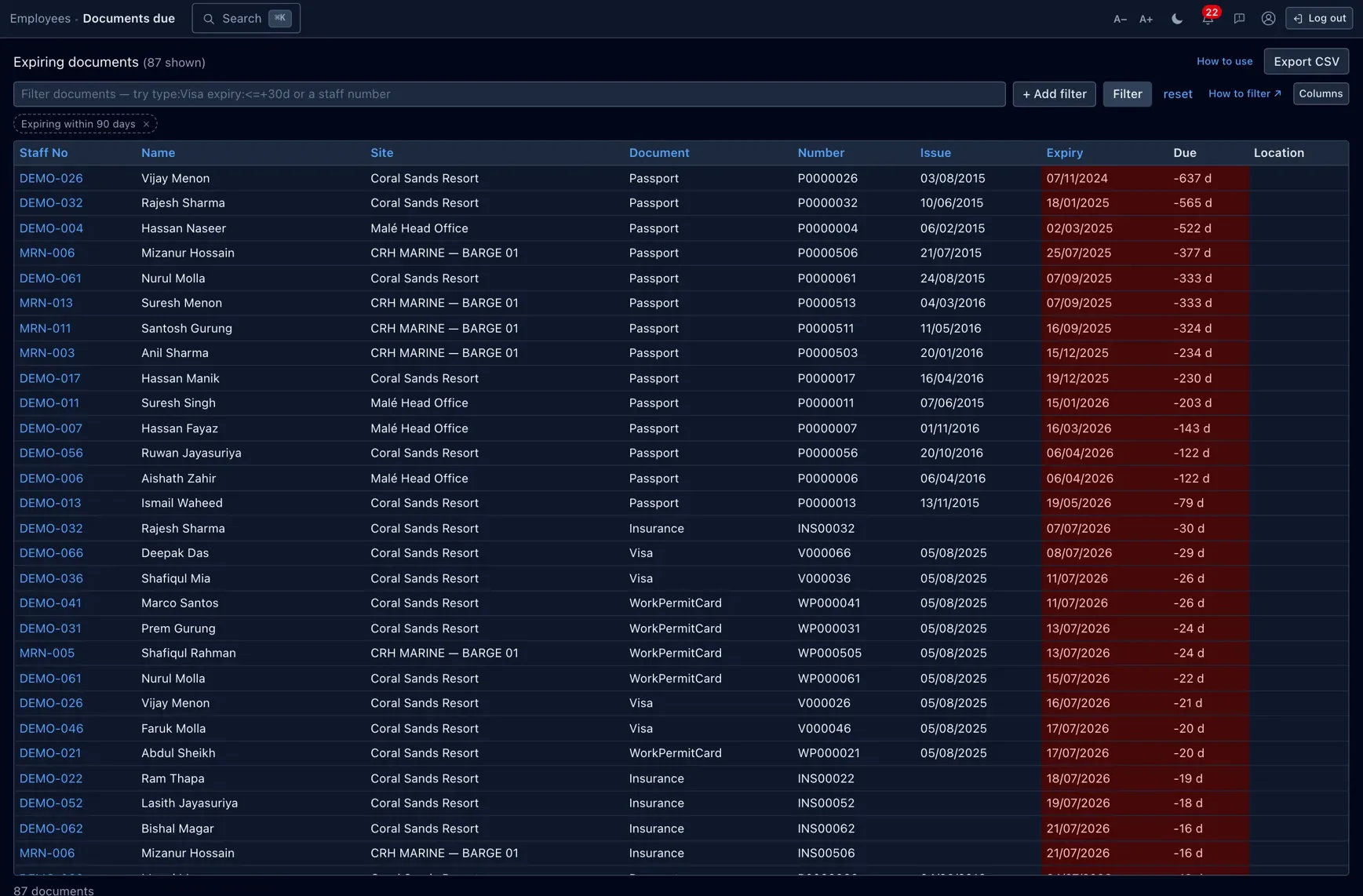
Employees › Documents
is the watch list: active documents for current staff, sorted by how soon they expire, defaulting
to those due within 90 days. Each row shows the days remaining (or how many days it is already
overdue), and you filter it with the query box like any list — for example
type:Visa expiry:<=+30d for visas lapsing within a month. Export the current filter
to CSV. Documents with no expiry date, inactive documents, and papers belonging to staff who have
left are all kept off this list on purpose.
Permissions & gotchas
- Company docs · View — read the library and compliance (drafts stay hidden). · Manage — create, upload, publish, set audience, witness acknowledgements and export.
- Documents · View — read the documents-due list and export it. · Manage — add and edit employee documents.
- Sensitive · Personal — see unmasked document numbers; without it they read as
***.
Worth remembering
- Acknowledgements and refusals are permanent records — corrections are new rows, never edits.
- A document's audience and its compliance counts are live against the current roster.
- Publishing a new version can send everyone back to pending — that is a choice made at publish time.
- An employee document with no expiry date is not tracked; a document number is sensitive data.