People
Employee self-service guide
Self-service is your own corner of HumanR — it shows your information and nobody else's. Here you can check payslips, see your leave balance and request time off, ask to correct your details, and apply for an advance or a loan. This guide is for staff using self-service.
This is the guide HumanR users read inside the product, published as-is. It is written for someone with the screen in front of them, so it describes buttons you cannot click from here — which is rather the point: you can check how the product behaves before you commit to it.
Your self-service dashboard
When you sign in to self-service you land on a personal dashboard with quick links to your payslips, leave and requests. Everything you see is your own record — self-service never shows other people's pay, leave or details.
Your HR team sets up your access and hands you a sign-in slip. If you can't get in, contact them — they can reset it for you.
Payslips
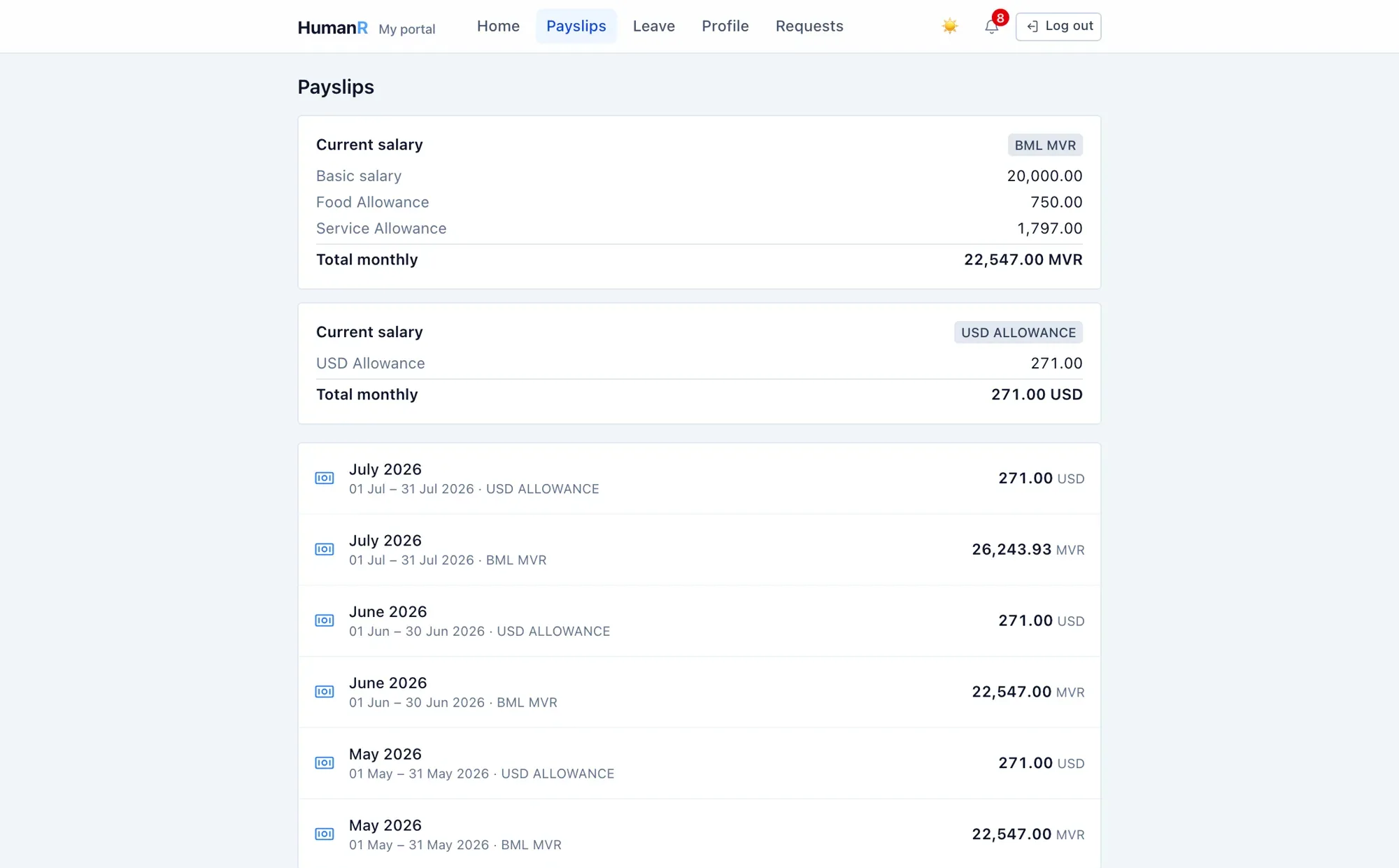
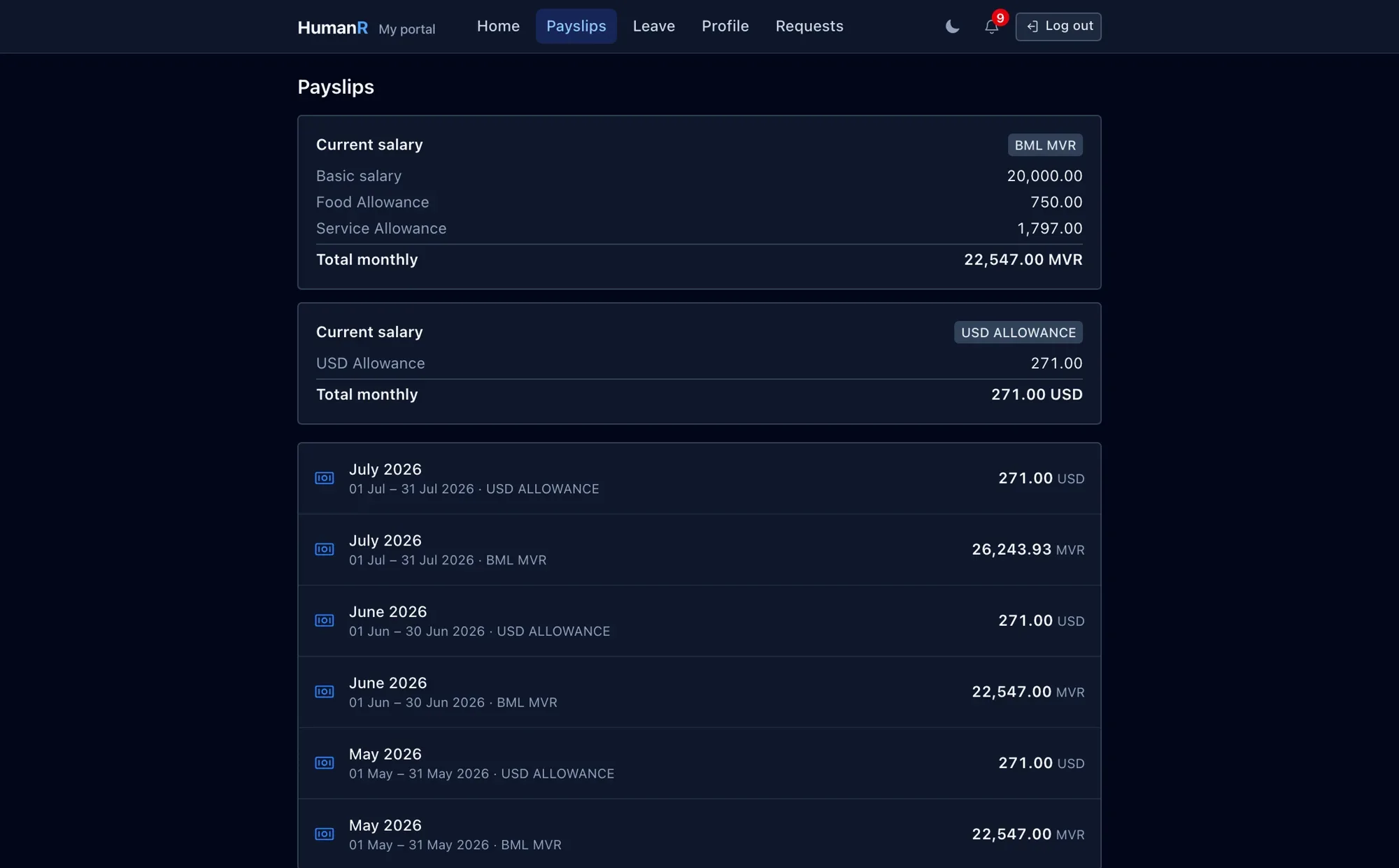
Your payslips list shows your finalized pay — the runs your company has completed. Draft or in-progress runs never appear here, so you only ever see settled figures.
- The most recent three years of payslips are available to open and download.
- Your bank account number is shown masked to the last few digits for your safety.
Leave — balances, requests & plans
Your leave section shows live balances for each leave type you're entitled to, and lets you ask for time off.
- Request leave — pick a type and dates. Your request goes to your managers for approval; you'll see its progress in your tracker.
- You can only request the leave types you're actually entitled to (unpaid/unauthorised absence isn't something you request here).
- Plan ahead — you can propose a leave plan for this year or next, so your team can see your intended time off in advance.
Balances update on their own as leave is approved and taken — there's nothing to refresh.
Your profile & corrections
You can view your profile and ask for corrections to certain fields — things like a contact number or address. You don't edit the record directly; you submit a change and HR reviews it.
- Only a set list of fields can be corrected this way — the ones safe for you to propose.
- Each note can be up to a few hundred characters.
- You can have one pending change per field at a time — submit it, then wait for HR to action it before proposing another change to the same field.
Requests — overtime, advances & loans
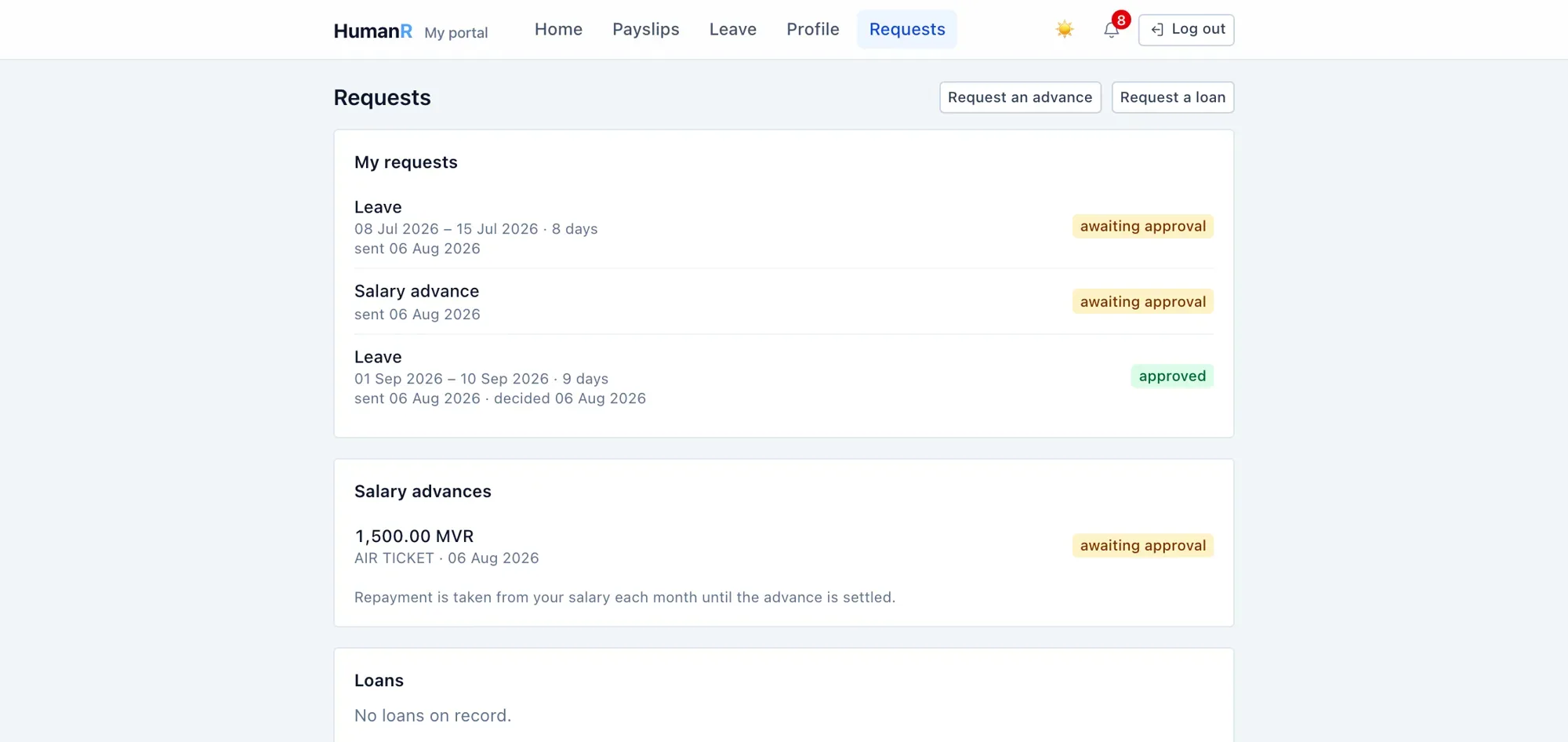
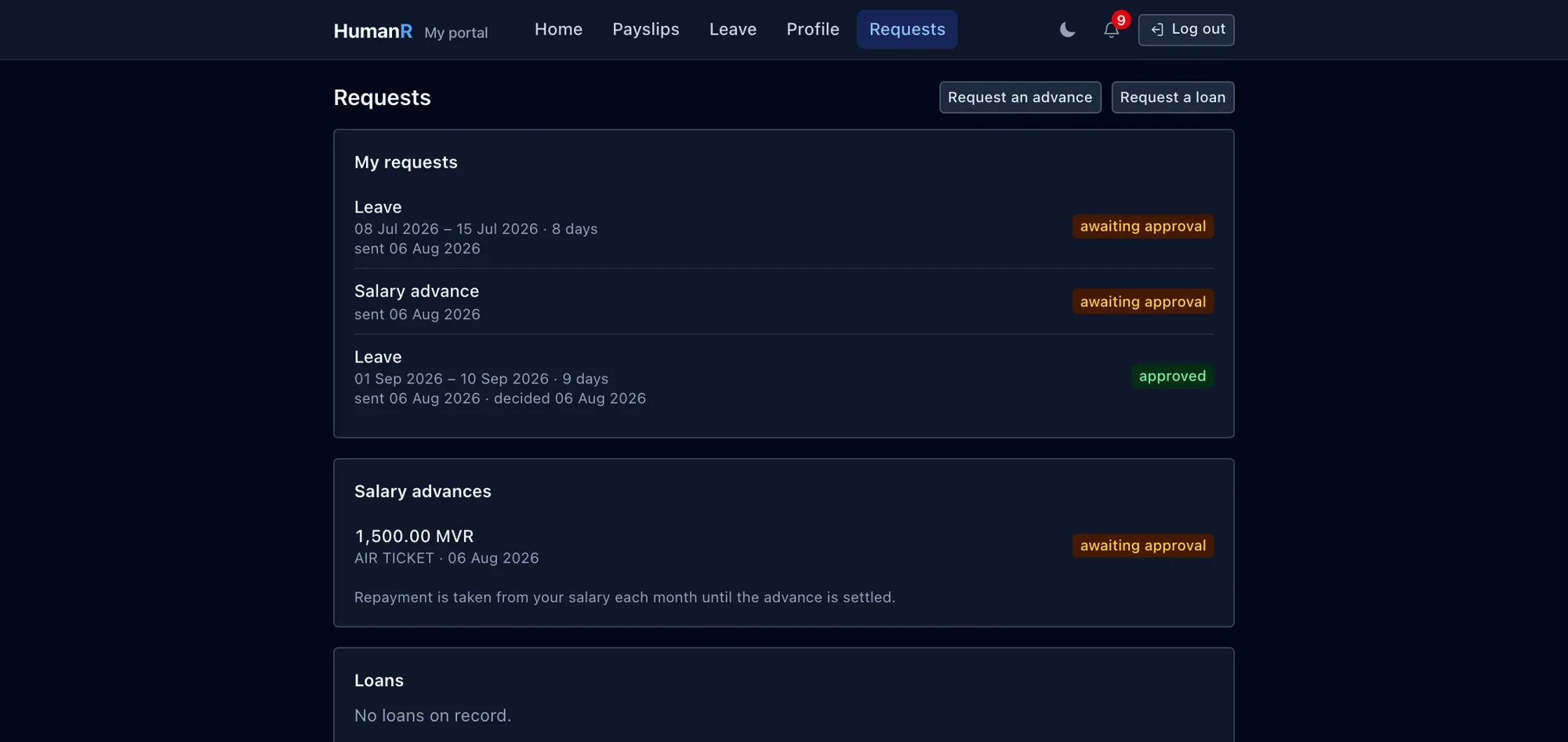
If your company offers them, you can request a salary advance or a loan from self-service. Both go through approval, and once agreed, repayment is handled through payroll.
- You can have one advance and one loan request in progress at a time — settle or withdraw the current one before starting another of the same kind.
- Your tracker lists your leave, profile changes, advances, loans and plans, with their status.
Claim overtime is on the same page: the day you worked and the extra hours. Your supervisor sees that day's clock-in and clock-out beside your claim, and may approve fewer hours than you asked for — the tracker shows what was approved.
Sign-in & sessions
The first time you use the sign-in slip from HR, you'll set your own password. After that you sign in with it as normal.
- You can see where you're currently signed in and sign out a session you don't recognise.
- Where your organisation offers it, turn on two-step sign-in from Profile › Sign-in security: after your password you also enter a six-digit code from an authenticator app on your phone. Keep the recovery codes it gives you somewhere safe.
- Forgot your password? Your HR team resets it — for security, there's no self-service reset.
You'll get an alert when your account signs in on a new device — a simple way to spot anything that isn't you.