Pay
Payroll to accounts guide
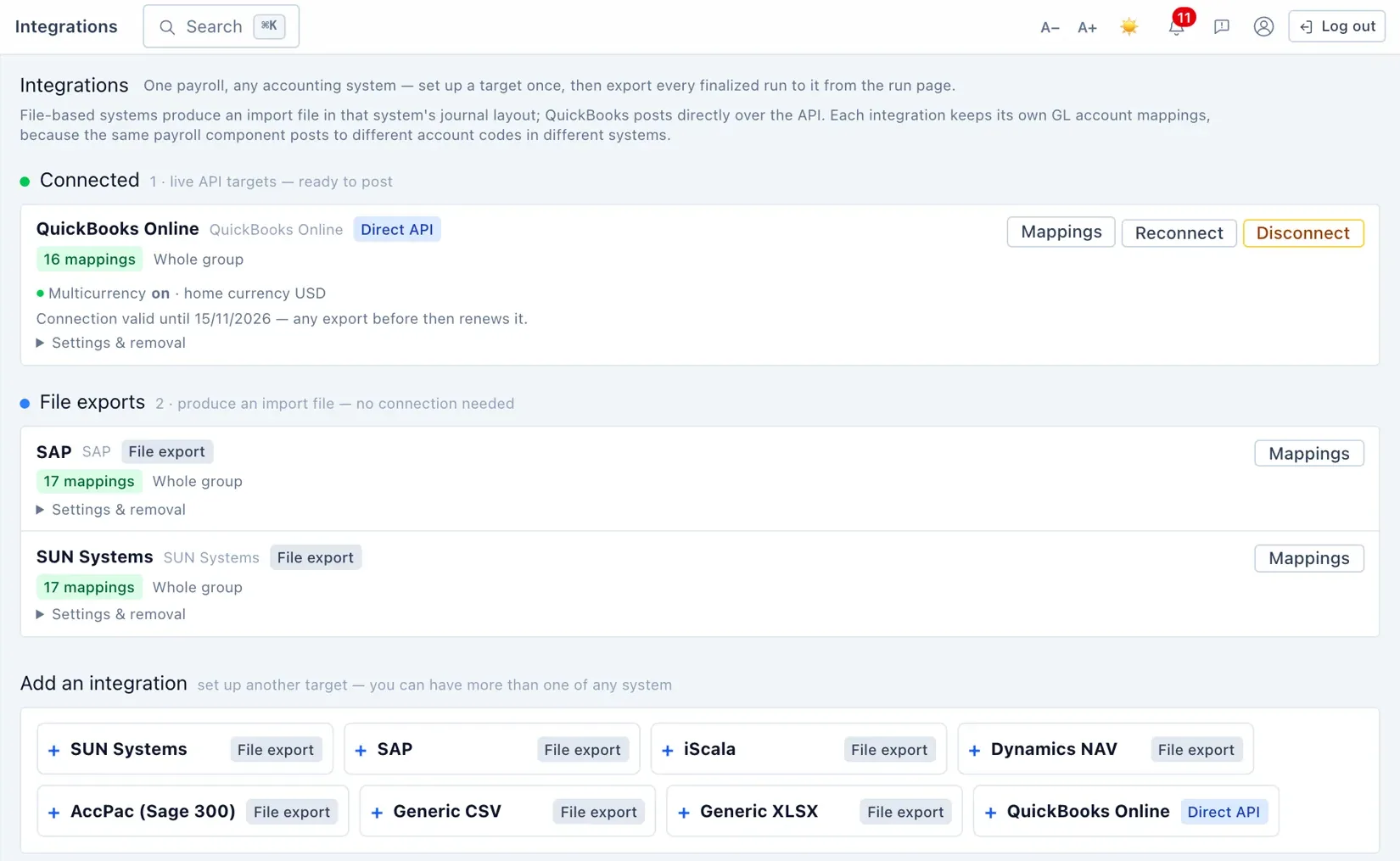
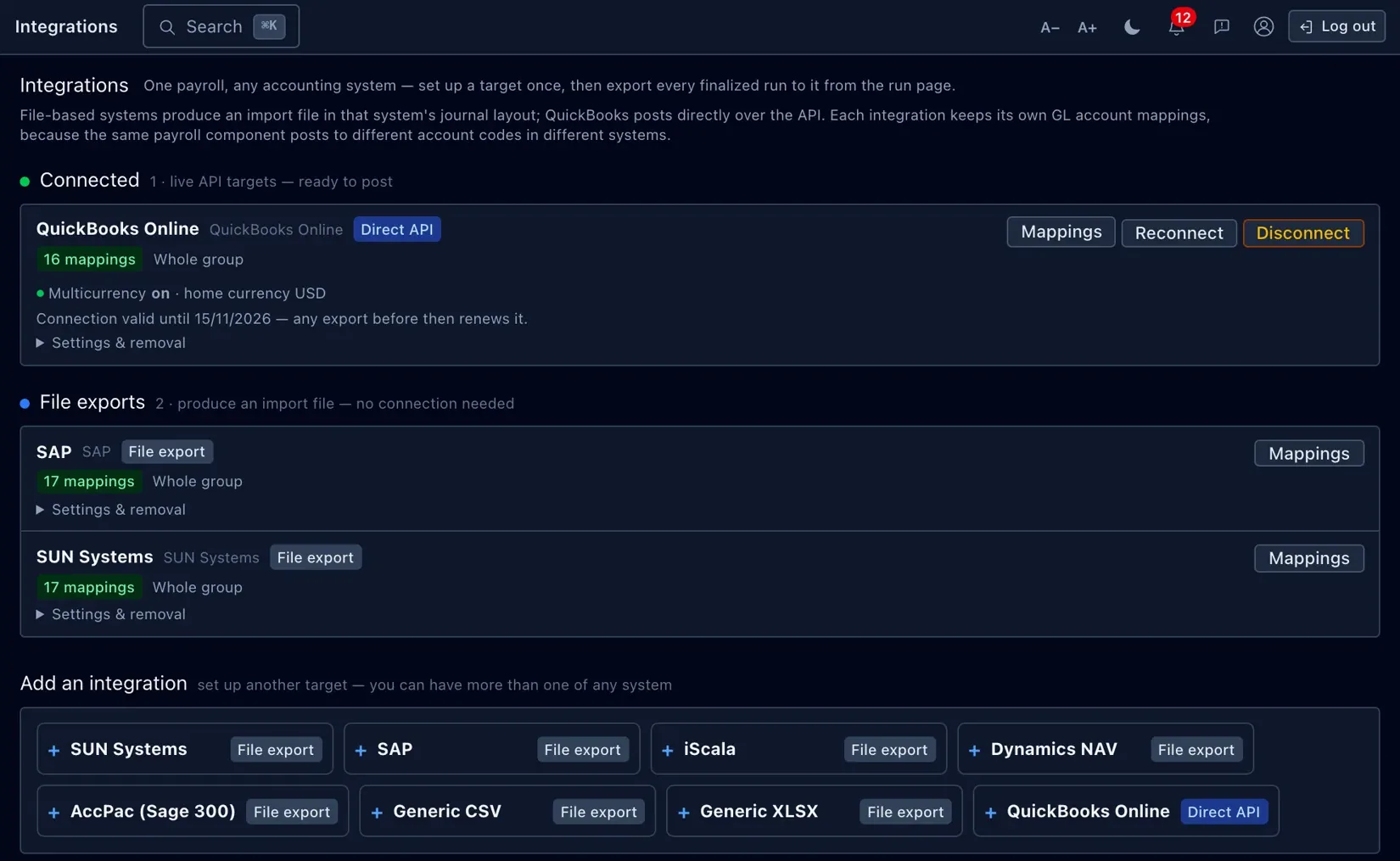
This module turns a finalized payroll run into a journal for your accounting system — either a file you import, or a direct posting to QuickBooks Online. This guide covers connecting an accounting system, mapping pay to accounts, running an export, and the history it keeps.
This is the guide HumanR users read inside the product, published as-is. It is written for someone with the screen in front of them, so it describes buttons you cannot click from here — which is rather the point: you can check how the product behaves before you commit to it.
What GL export does
When a payroll run is finalized, this module produces the matching general-ledger journal — the accounting entry that books wages, deductions and net pay to the right accounts. You get two ways to deliver it:
- A file to import into your accounting package — several formats are supported (including SUN, SAP, iSCALA, Microsoft NAV, Sage 300, and plain CSV or Excel).
- A direct connection that posts the journal straight into QuickBooks Online.
Connecting QuickBooks
For a direct connection you authorise HumanR with your accounting provider once — a secure sign-in that hands HumanR permission to post journals, without HumanR ever seeing your accounting password. You can reconnect later if the authorisation lapses.
Mapping your accounts
A journal is only useful if each pay figure lands in the right account. You set that up once with mappings, of which there are four kinds:
| Mapping | What it decides |
|---|---|
| Pay component | Which account each pay line (basic, allowances, deductions) posts to. |
| Cost centre | How the cost is split by work site and department, with a sensible fallback. |
| Net pay | The clearing account for what's actually paid out, by bank and currency. |
| Default | A catch-all so nothing is ever left unmapped. |
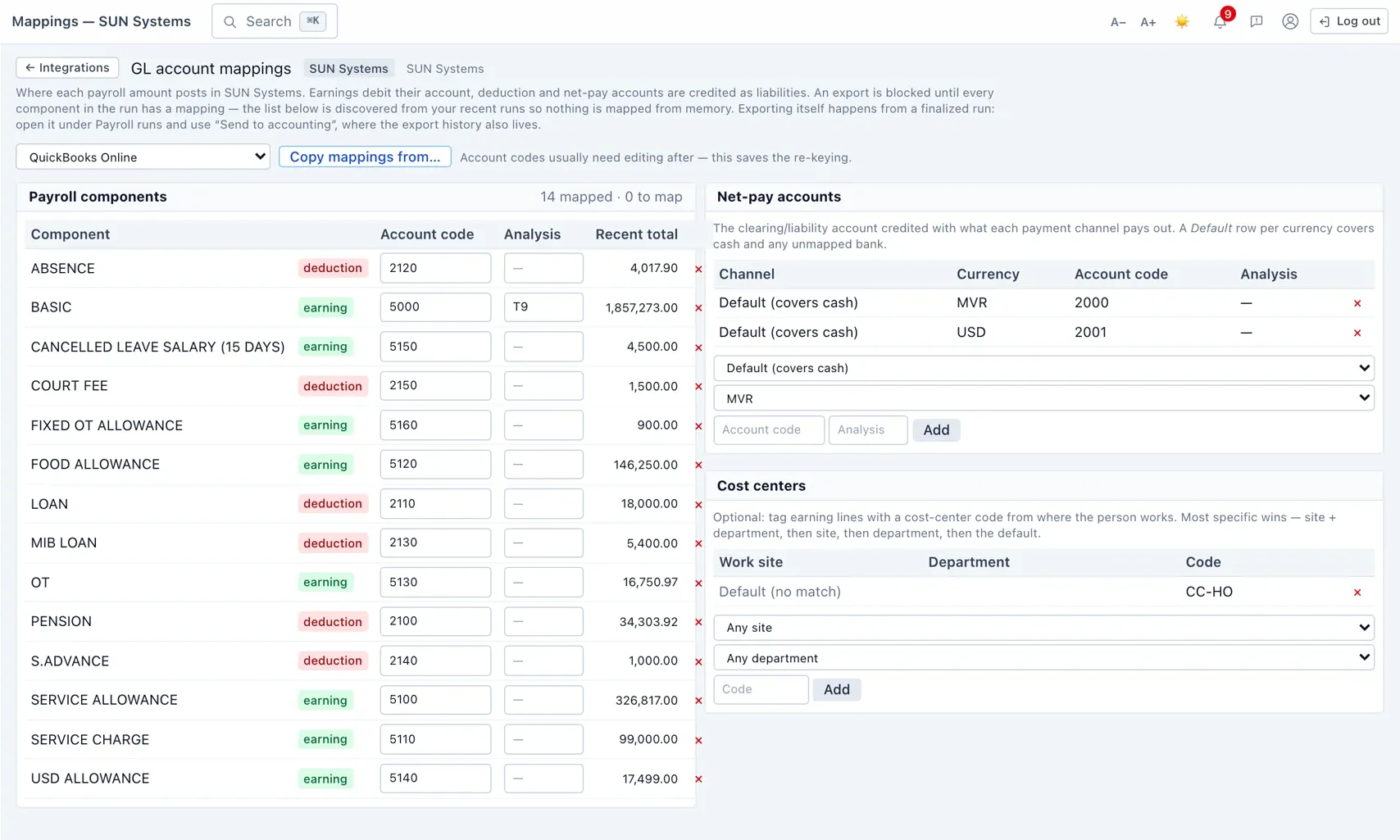
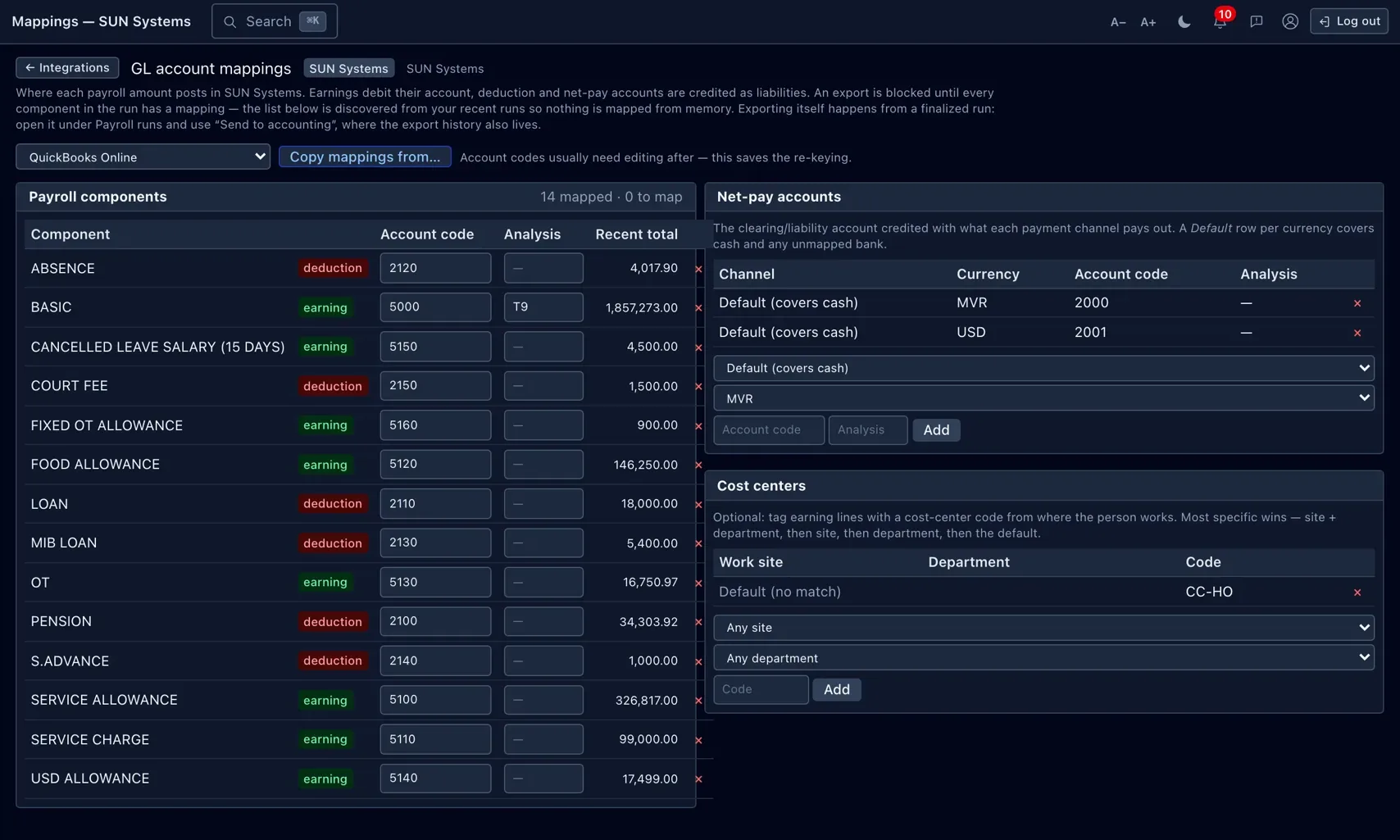
To save you hunting, HumanR lists the pay components it has actually seen in your recent runs, so you map what you really use. You can also copy mappings from another integration you've already set up.
Running an export
From a finalized run, choose the integration to export to. HumanR then:
- Checks it first — if a pay component or currency isn't mapped, it tells you before anything goes out, so you fix the mapping rather than post a wrong journal.
- Delivers — a file downloads, or a direct connection posts the journal and records the reference it comes back with.
Export history
Every export is listed with its status, so you can confirm what was sent where and, for file exports, re-download the file. An integration that has history behind it is deactivated rather than deleted, so the record of what you posted is never lost.
Permissions & gotchas
- Finance · View — see integrations, mappings and history.
- Finance · Manage — connect systems, edit mappings and run exports. Sending a journal to the ledger is treated as an action, not just viewing.
- This is an optional module: if you don't see it, it hasn't been switched on for your instance (an operator step). The one-time provider credentials are set up by whoever runs your instance.
Worth remembering
- Only finalized runs can be exported.
- Map your accounts once; re-exporting the same run is guarded against.
- Integrations with history are switched off, never deleted.